To expand the number of marketplaces where you list and sell goods, creating a backup copy of your products on eBay or to set up the “External item” you may need our automatic import feature for items from eBay. We will explain this in detail in our article.
If you need to process the shipment as “External item”, but the item is not yet in your Lavky catalog, you can quickly import it from eBay. After that, the item will appear in the Lavky catalog and can be used when creating the corresponding shipment.
The import process is quite simple: the system automatically transfers items from eBay to the Lavky catalog, and the seller only needs to log in to eBay, select the required items and confirm the import.
How to import products from eBay into Lavky
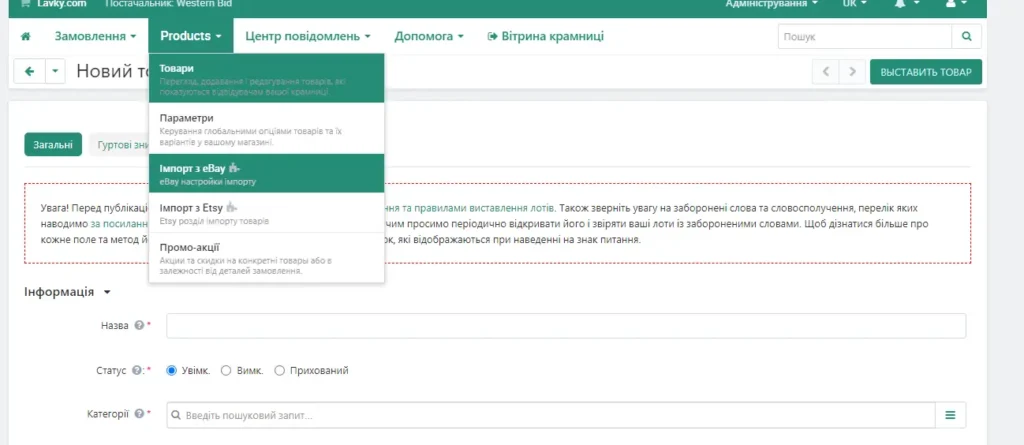
Skipping the process of creating a new product, in the dropdown menu select “Import from eBay”.
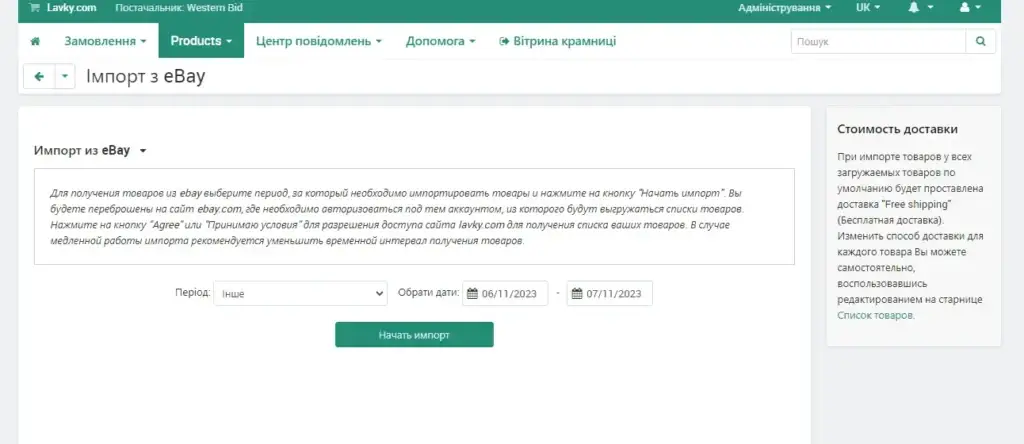
Click the “Start Import” button. Important: always check how many products you have in your store before starting the import.
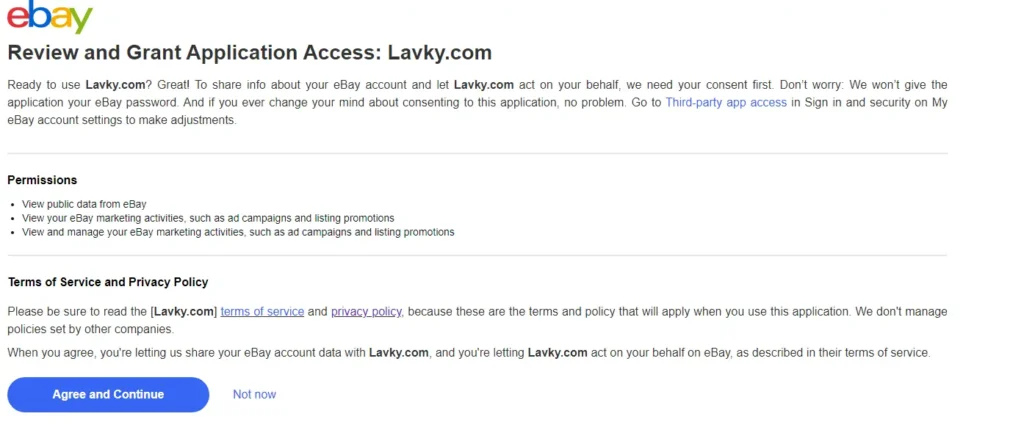
The system will redirect you to eBay, where you will need to enter your Login and Password for your profile:
In the next stage the system will take you back to the Lavky marketplace in the Admin Panel, where you will see all the items that were transferred from eBay.
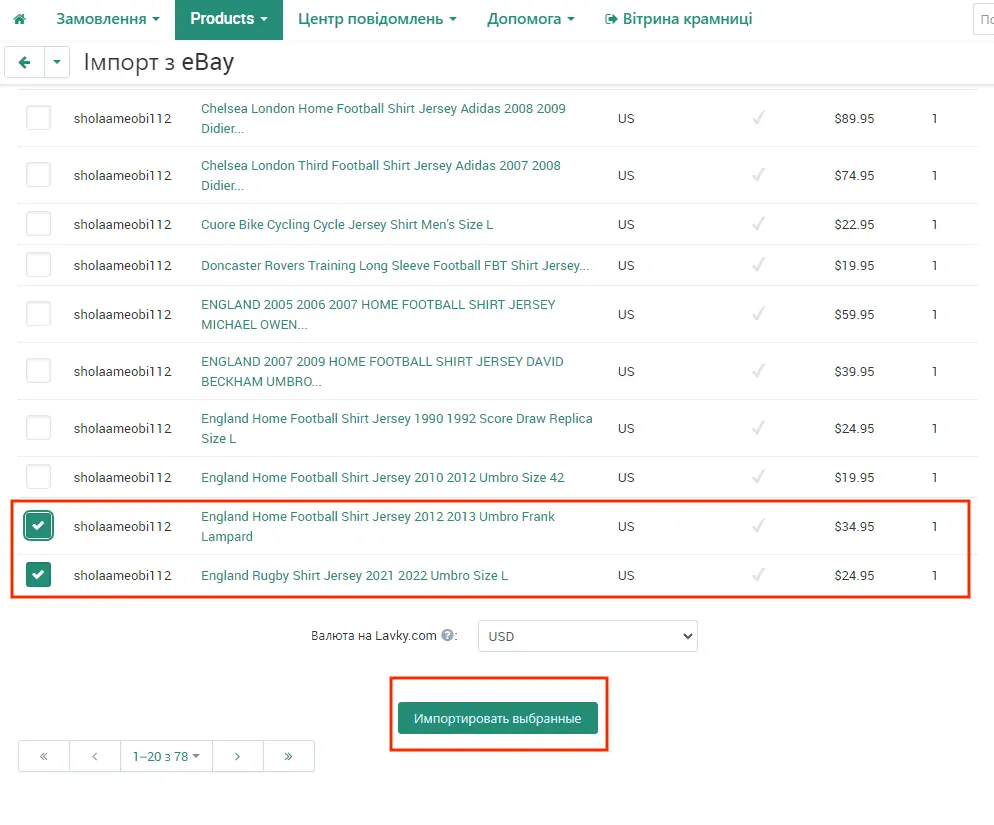
Now you need to select the items you would like to add to the catalog (or some items, or all items), choose the currency and click the “Import Selected” button:
After the import is completed in the store, you can verify that all selected and marked items have been successfully added to the catalog. The default status of these items is “Off”, and the shipping cost is zero. You can keep this free shipping method, or create a new shipping method.
Now your items have been added from eBay to Lavky.
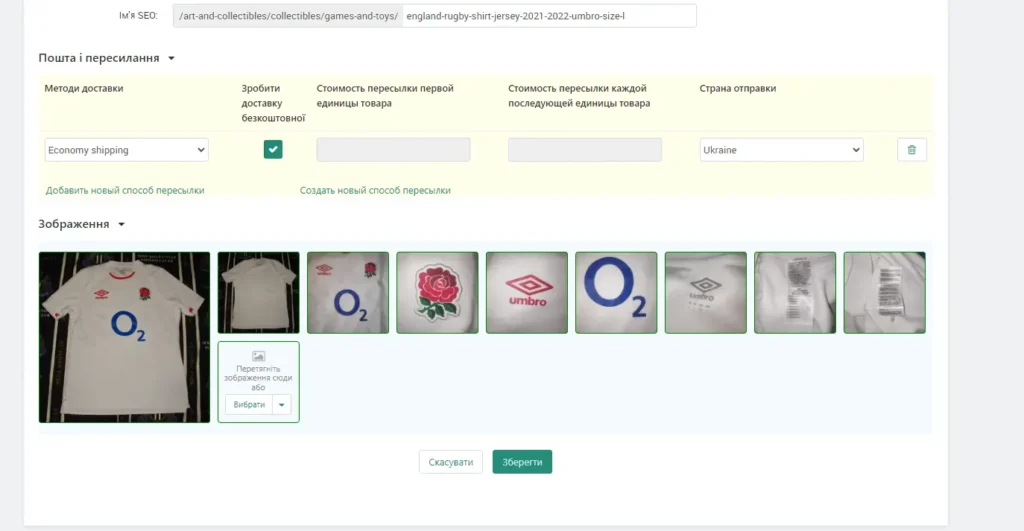
After the import, be sure to check the imported products
After the import is completed, the products are added to the Lavky catalog with the status ‘Disabled’, and the default shipping cost is zero.
Before publishing the products, we recommend checking:
- the product name;
- description;
- photos;
- price and currency;
- product category;
- product availability;
- delivery method and cost;
- compliance with Lavky rules.
Also a list of useful links related to our free Lavky marketplace:
– How to register on the Lavky marketplace?
– How to add additional stores to your Lavky account?
– How to add multiple shipping methods on Lavky?
– How to import products from Etsy to Lavky?
– Lavky products in Google search
– How to publish a digital product on Lavky?
– How to create discounts on Lavky.com
– Using Lavky instead of a direct payment link?
– When and how are payments from Lavky credited?
– I go to Lavky, but I don’t see my listings. What’s the reason?
– How to list a product on the Lavky marketplace?
Frequently Asked Questions about importing goods from eBay to Lavky
Are all my auctions imported from eBay automatically?
What exactly is transferred from eBay to Lavky during import?
Does importing change my eBay listing settings?
What should be done about shipping for imported goods?
After import, all products have zero shipping cost and a disabled status. You can keep free shipping or configure paid shipping methods and rates according to Lavky’s instructions.
