All customers love discounts! On the Lavky marketplace you also have the ability to offer a variety of discounts and bonuses with many variations.
Lavky offers the option to create discounts for your customers. You can set discounts and bonuses, as well as the terms and duration of their validity, in the seller’s account on lavky.com. There are two types of discounts: wholesale and promotional.
How to add a discount?
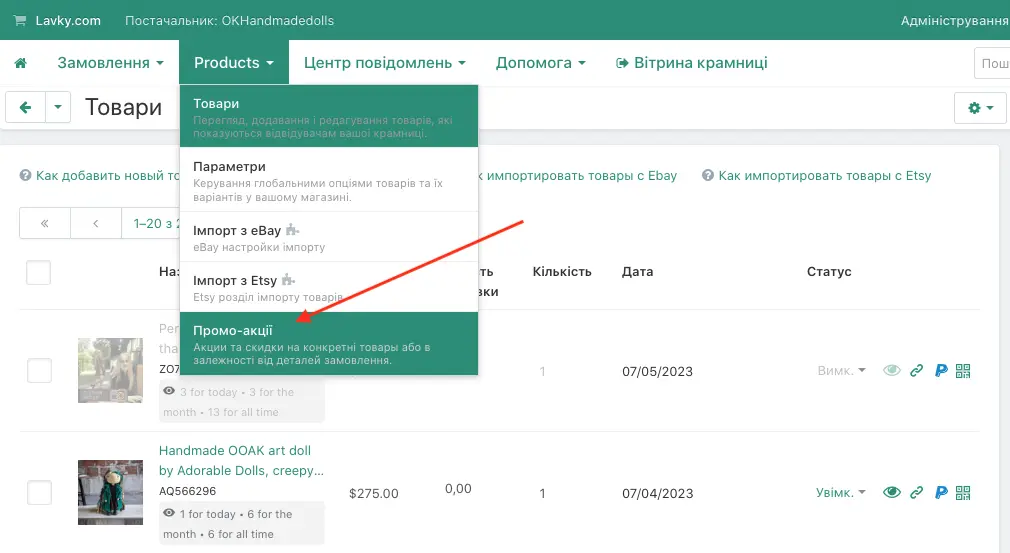
In the “Products” menu section you need to select “Promotions and discounts”.
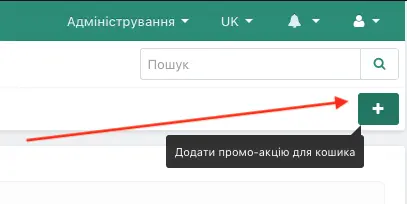
To add a new promotion or set wholesale discounts, click the “+” in the top-right corner.
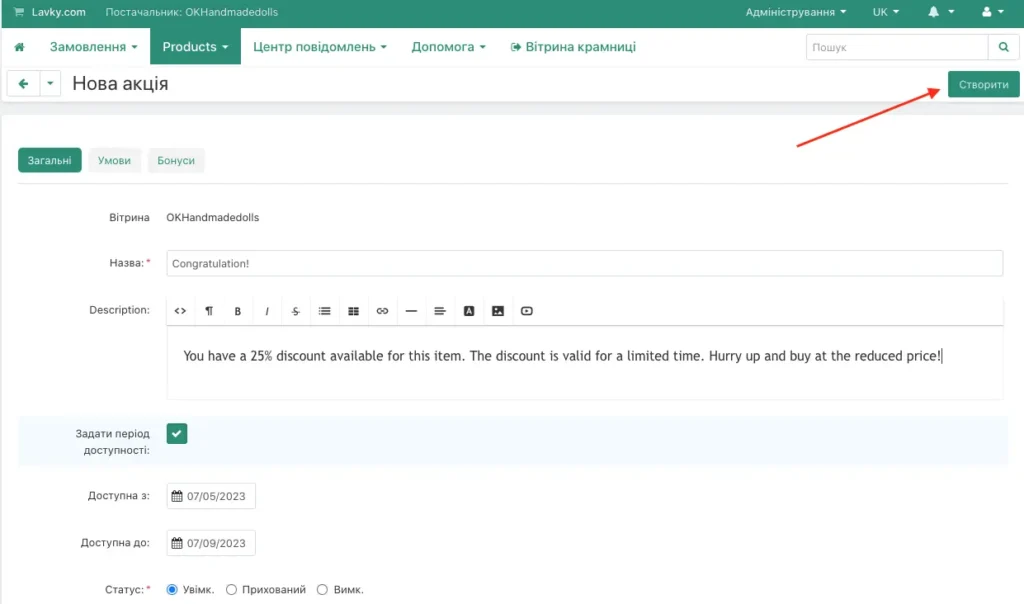
There will be 3 tabs in the window: General, Terms and Bonuses. Fill in all the required fields and click the “Create” button.
In the General tab you need to specify a name for your discount (for internal use; customers will not see it) and the status: enabled, hidden, or disabled.
Additionally, if needed, you can set the discount period. By default, these fields will not be available until updated and will indicate only the day the discount was created. But if you want to set your own availability period for this promo to customers, you can do so by ticking the “Set availability period” checkbox, and then the “Available from” and “Available to” fields will become active, and you will be able to select any dates from the calendar:
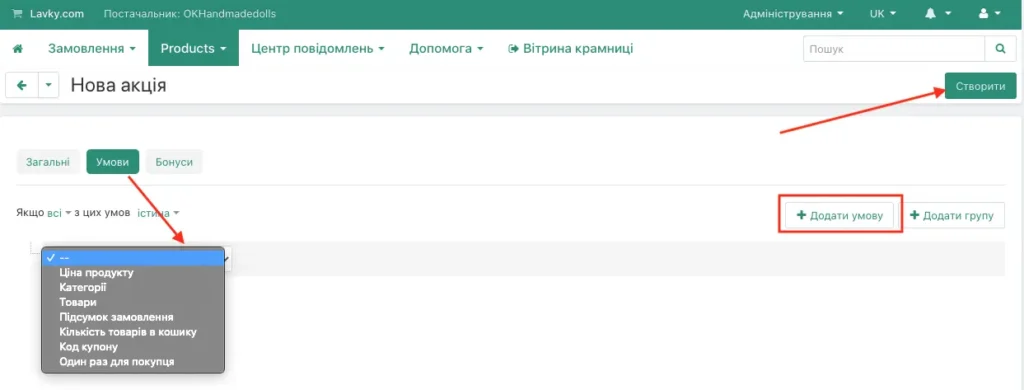
In the “Conditions” tab you can add conditions for obtaining a discount:
- Product price
- Categories
- Products
- Order total
- Number of items in the cart
- Coupon code
- One per customer
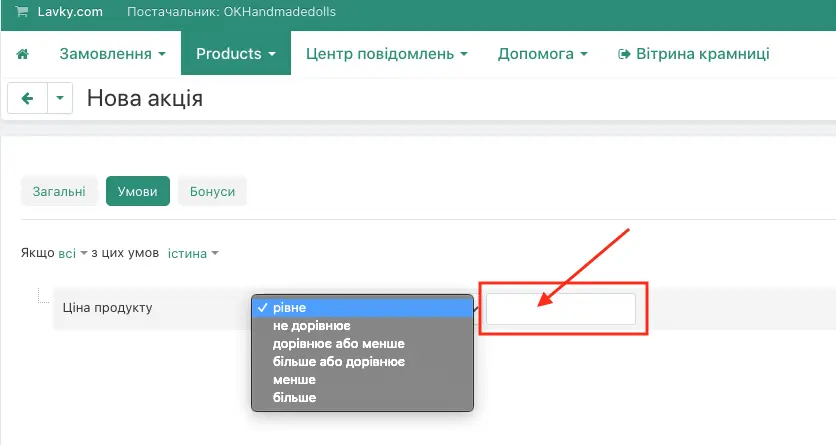
If you select the condition “Product price”, you also have options to choose among different variants:
- equal
- not equal
- equal to or less than
- greater than or equal to
- less than
- greater than
In the adjacent field, enter a number.
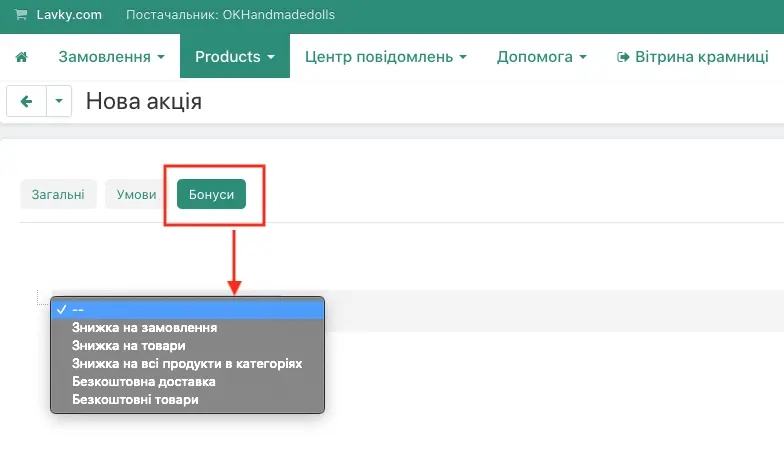
In the Bonuses tab you can add the following options:
- Discount on orders
- Discount on products
- Discount on all products in categories
- Free shipping
- Free products
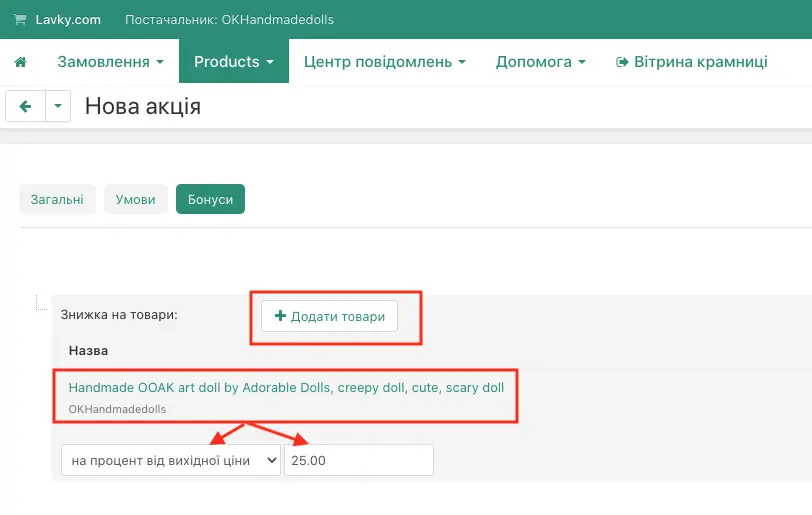
By choosing a bonus, for example, “Discount on goods”, you will have a few more options to choose from, but don’t forget to add products from your store that you are giving your customers as a bonus:
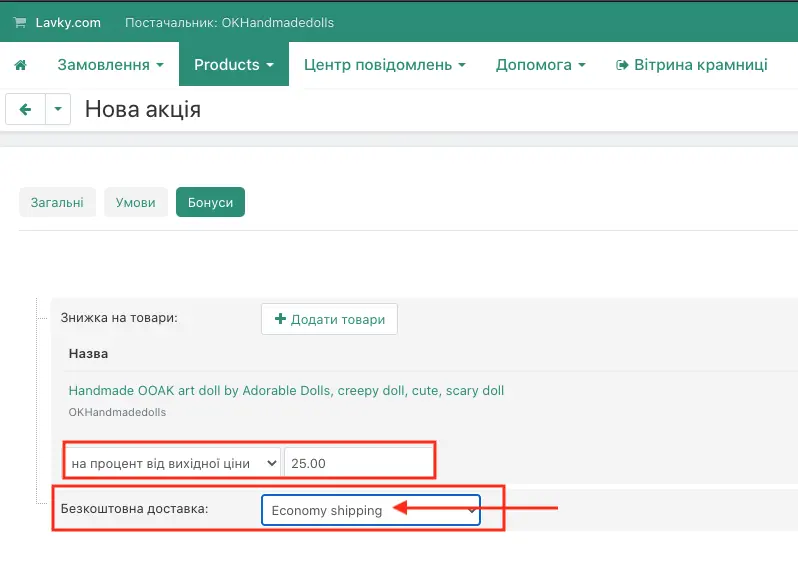
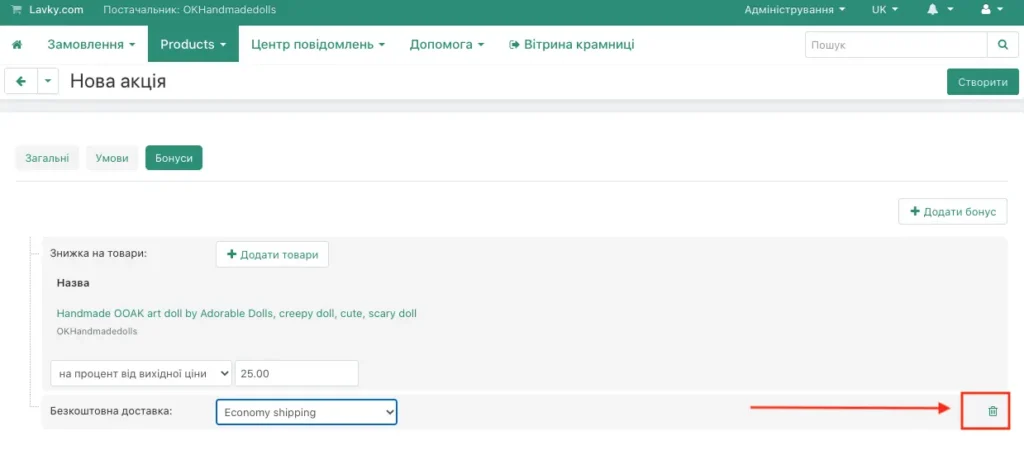
You can add not only one, but several bonuses as well, for example, here two bonuses have been added: a percentage discount off the original price and free shipping.
In addition, you should remember that free shipping will be provided to those items for which “Economy shipping” is specified in the shipping method:
When your discounts, the terms for them, or bonuses become no longer relevant, a cart icon will appear on hover. By clicking it, you can remove the options you don’t need:
When a customer adds to the cart a product that meets the promotion condition, and adds the product specified in the promotion, the first bonus will be triggered, and a 25% discount will be applied to the original price of this product. Also, since the delivery method for the products is “Economy shipping”, the second bonus will also be triggered, and shipping will be free.
Useful links for working with Lavky