This is a step-by-step guide that shows how to register with Western Bid, calculate the cost, create a shipment, pay for the delivery, and send it from your city to the warehouse in Kyiv, and then abroad.
What to prepare before creating a parcel
Before creating a parcel, prepare:
- the recipient’s first name, last name, phone number and full address;
- the weight and dimensions of the packed parcel;
- the name, quantity, value and description of each item.
Read the parcel packaging rules.
Already registered with Western Bid? Go straight to the section “Calculating the cost and choosing a delivery method”.
Registering with Western Bid
Step 1
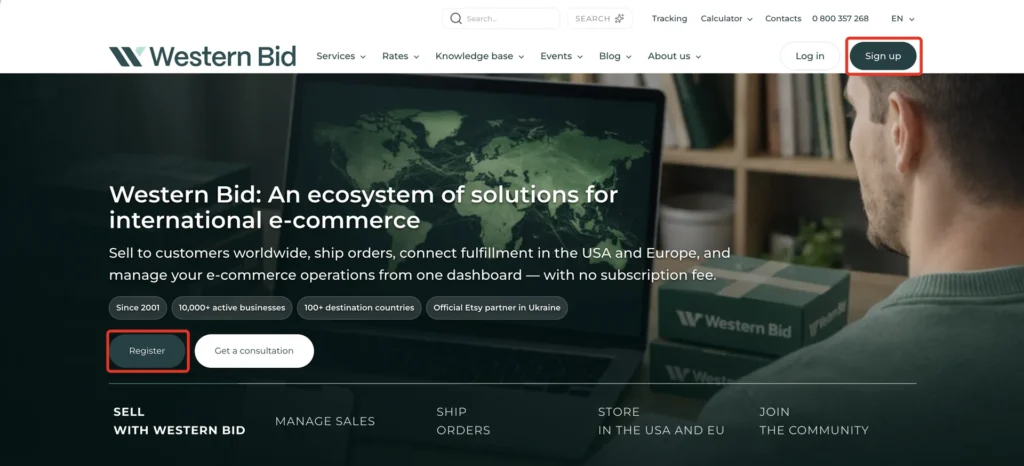
Go to the Western Bid website and click the “Register” button.
Step 2
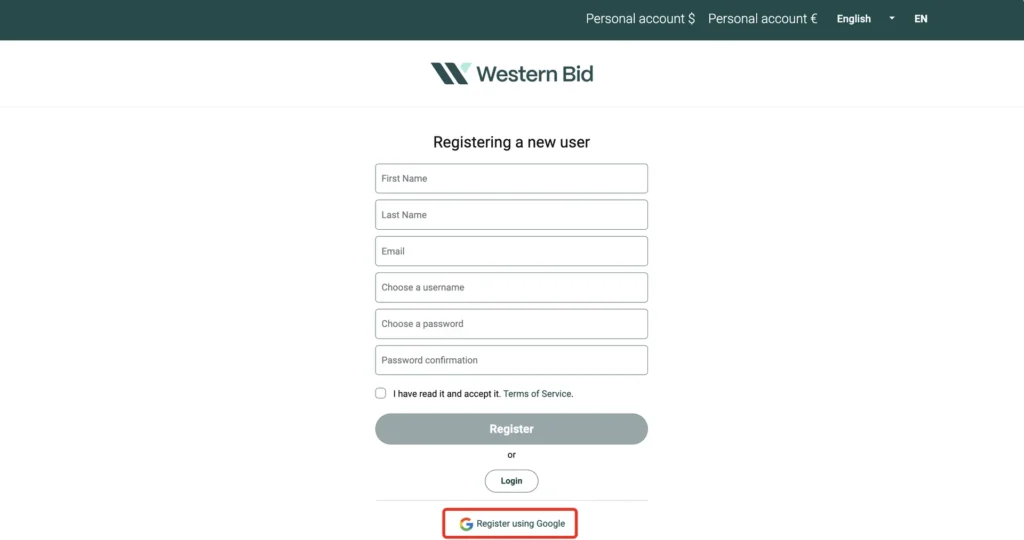
You can register with a Google account or an email address.
If you choose to register via Google, check that the first name, last name and email address in your account are correct.
Step 3
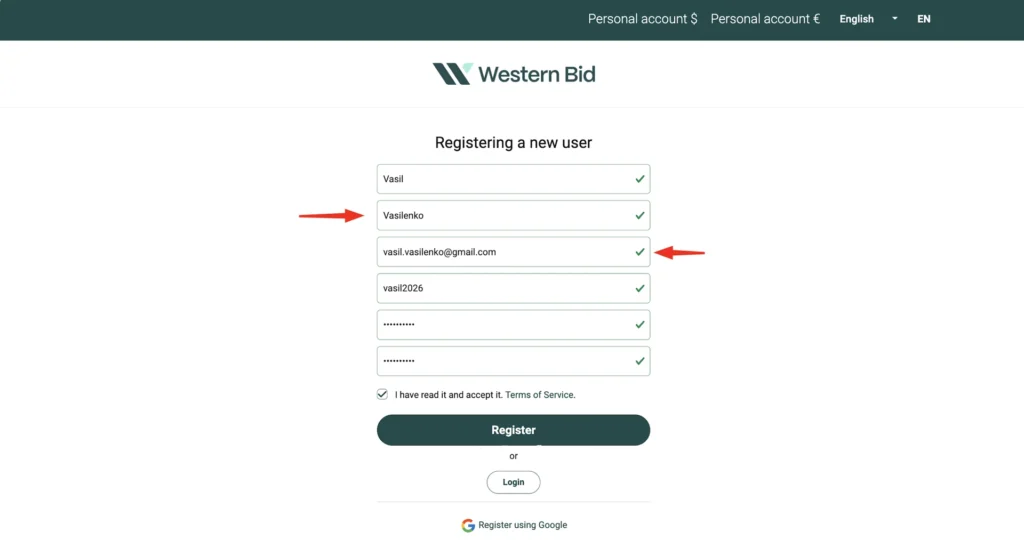
Enter your first and last name in Latin letters, your email address and a username. Create a password and enter it again to confirm.
Step 4
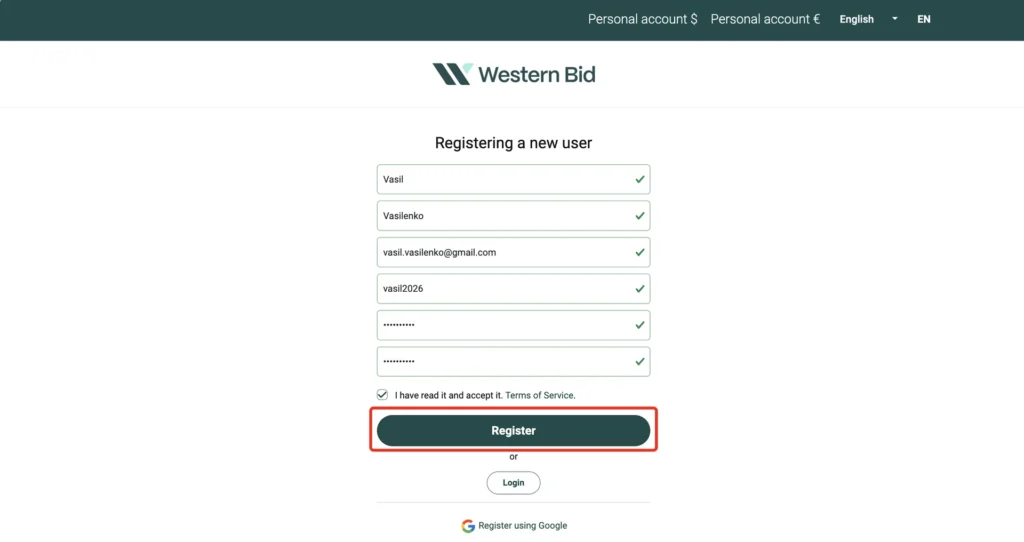
Read the Terms of Service, tick the box to accept them and click the “Register” button.
Step 5
After registration, Western Bid will send an email with an account activation link to the address you provided.
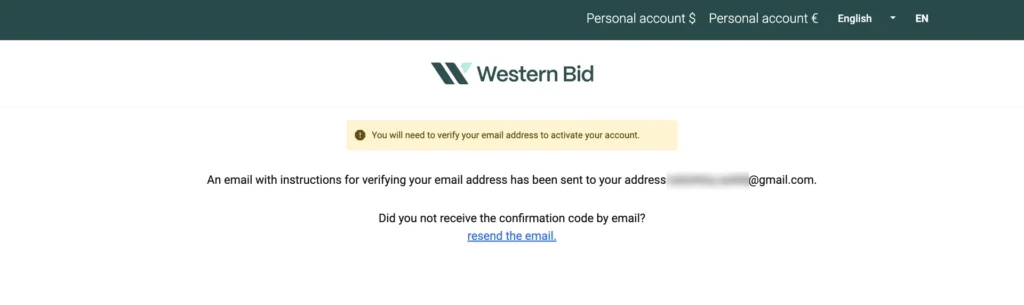
Step 6
Check your email and find the message from Western Bid. If it is not in your inbox, check the “Spam” and “Promotions” folders.
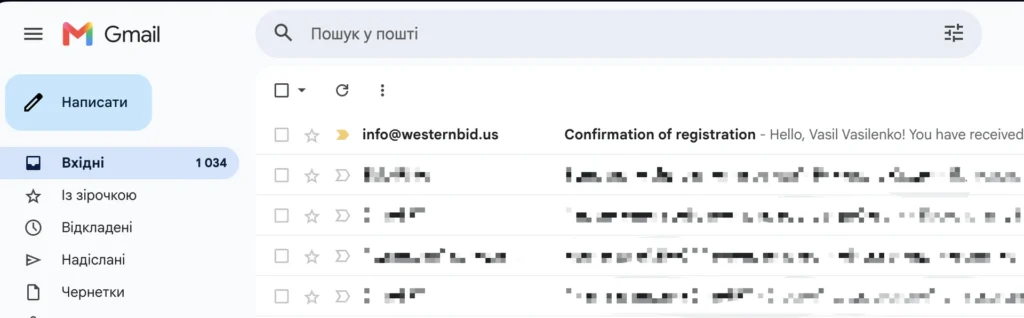
Step 7
Follow the link in the email to confirm your email address and activate your account.
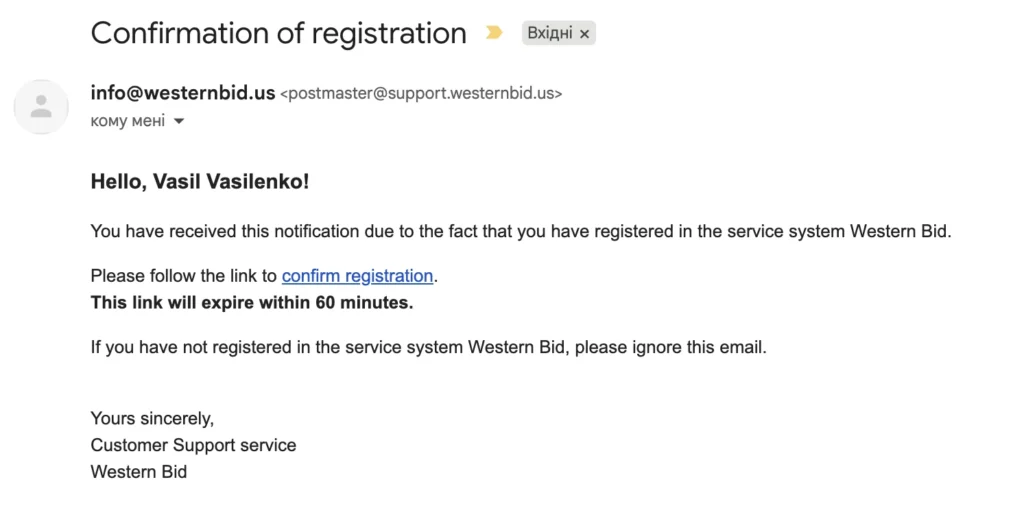
Step 8
Enter your date of birth and phone number.
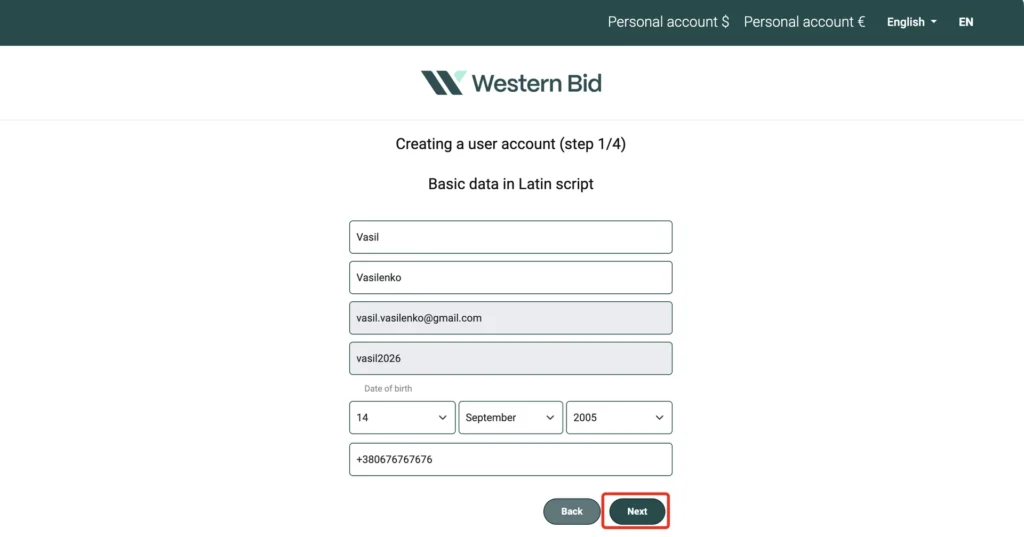
Step 9
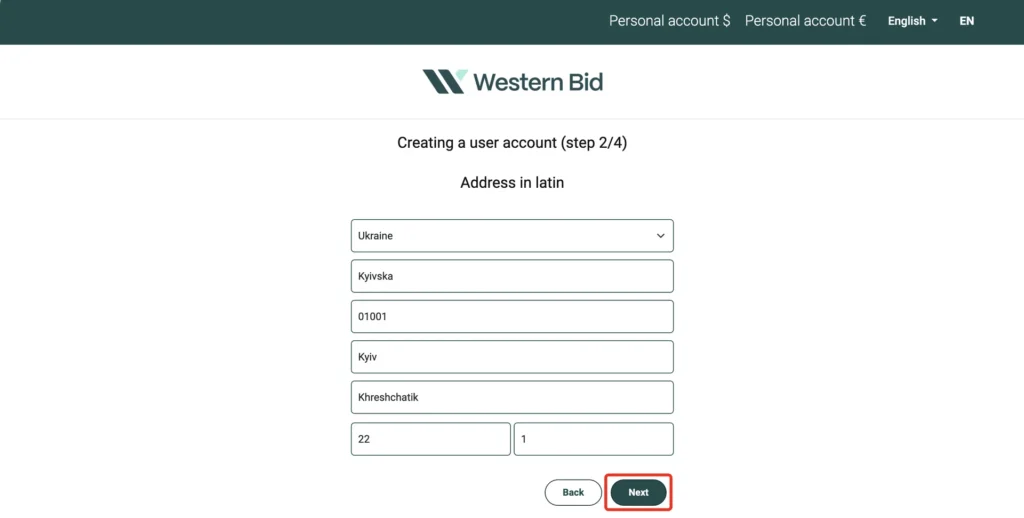
Enter your address in Latin letters.
Step 10
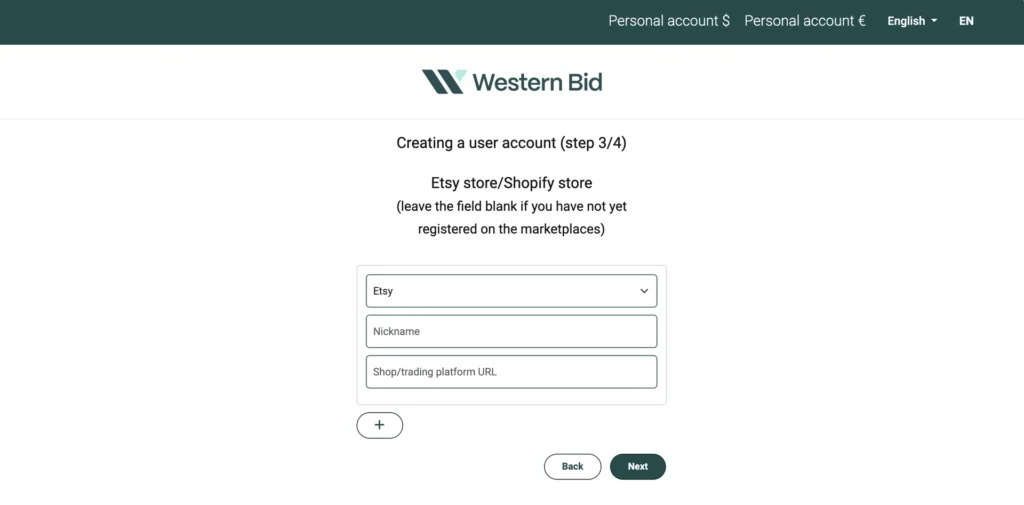
If you sell goods on a marketplace or in your own online store, you can enter your seller username and/or a link to the store. This step is optional.
Step 11
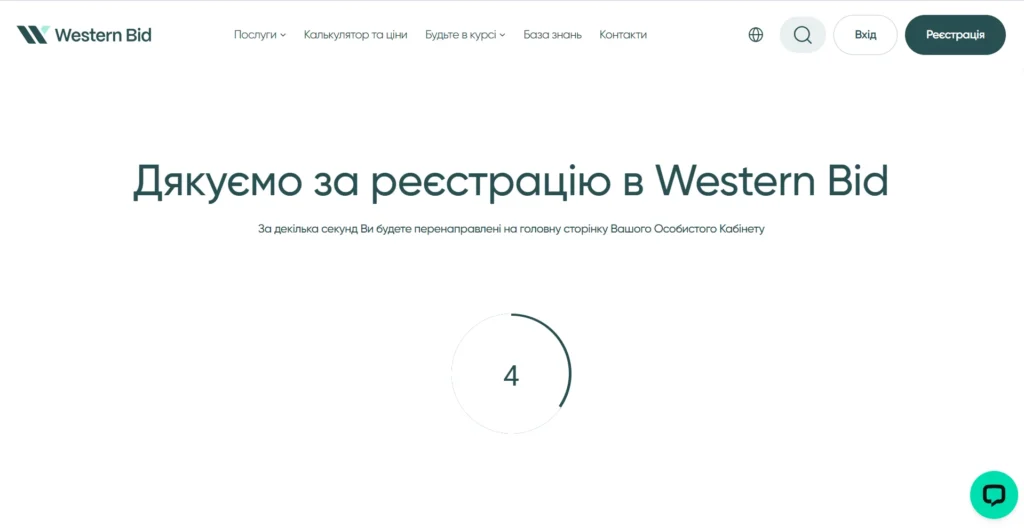
Registration is complete. In a few seconds the system will automatically redirect you to your personal account.
Calculating the cost and choosing a delivery method
Step 12
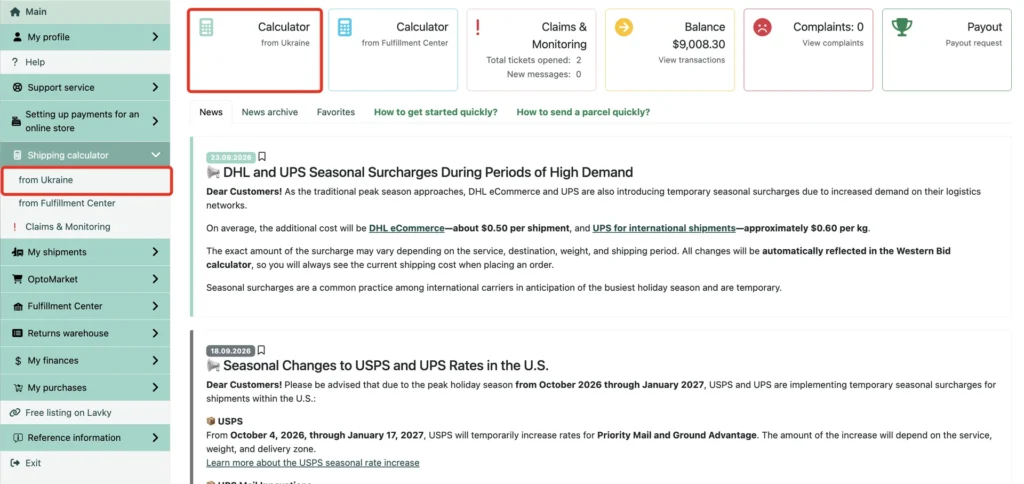
In your personal account, click the “Calculator from Ukraine” card. You can also open the calculator from the side menu: “Shipping calculator” → “from Ukraine”.
Step 13
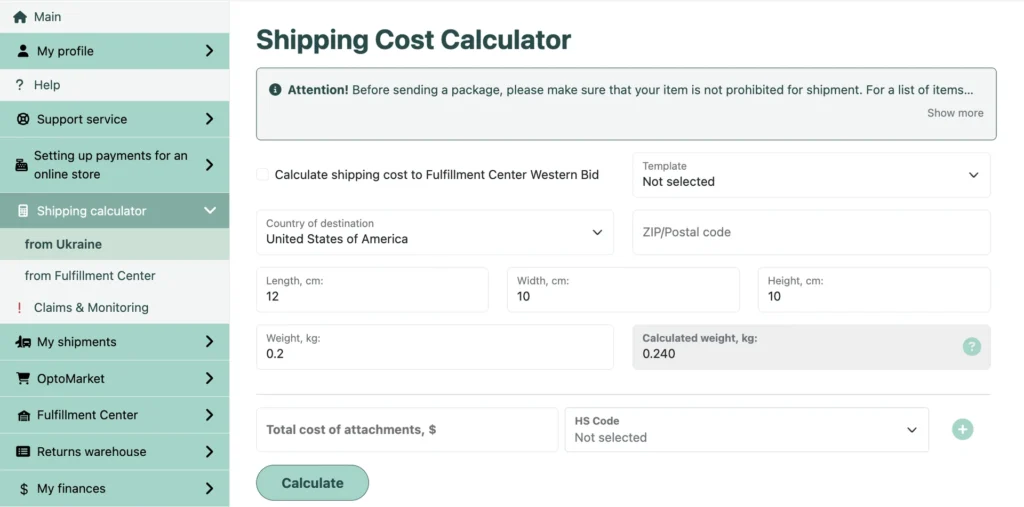
Select the destination country, then enter the length, width, height and actual weight of the packed parcel.
Step 14
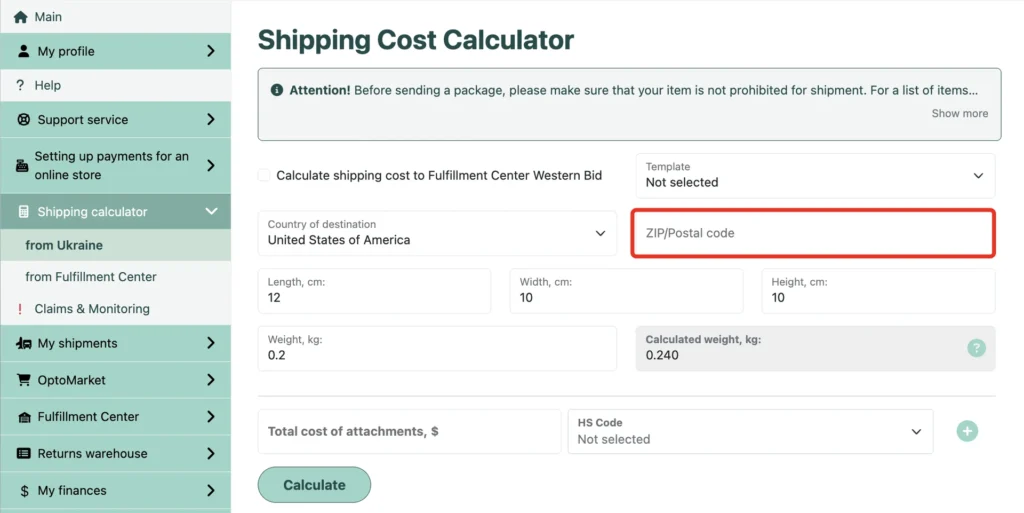
To get an exact shipping cost, enter the recipient’s postal code. If you leave this field empty, the calculator will show an approximate cost. You will need to enter the recipient’s full address later, when creating the parcel.
Step 15
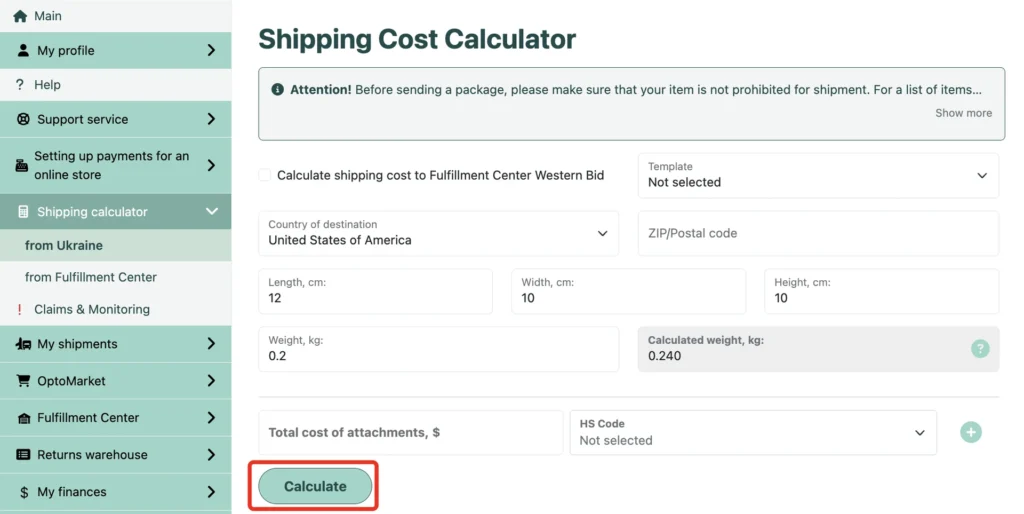
Enter the total value of the contents and select the HS code of the goods. If the parcel contains goods with different codes, click “+” to add another code. Once all fields are filled in, click “Calculate”.
The calculated weight is the greater of two values: the actual weight or the volumetric weight. The calculator determines it automatically from the dimensions and actual weight you entered.
Step 16
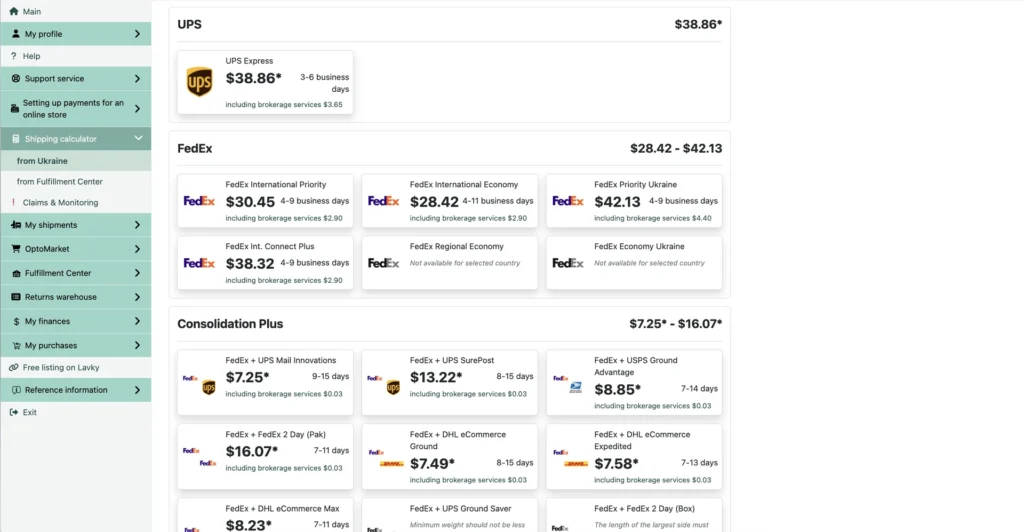
Compare the available delivery methods, their approximate cost and delivery times. Click the option that suits you.
Detailed terms and features of each delivery method are given on the shipping page.
Step 17
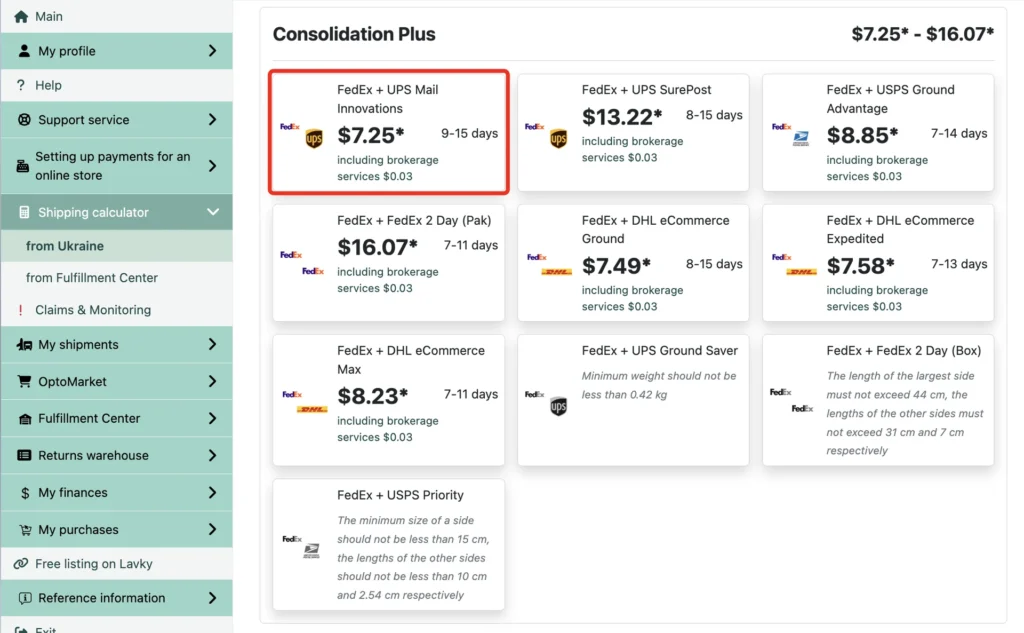
In this example, “Consolidation Plus” delivery has the lowest cost.
Parcels are consolidated for delivery to Miami, after which each shipment travels on to the recipient’s address.
To continue, we choose the FedEx + UPS Mail Innovations option.
The most cost-effective delivery method is determined separately for each parcel based on the calculation results.
Adding goods and recipient details
Step 18
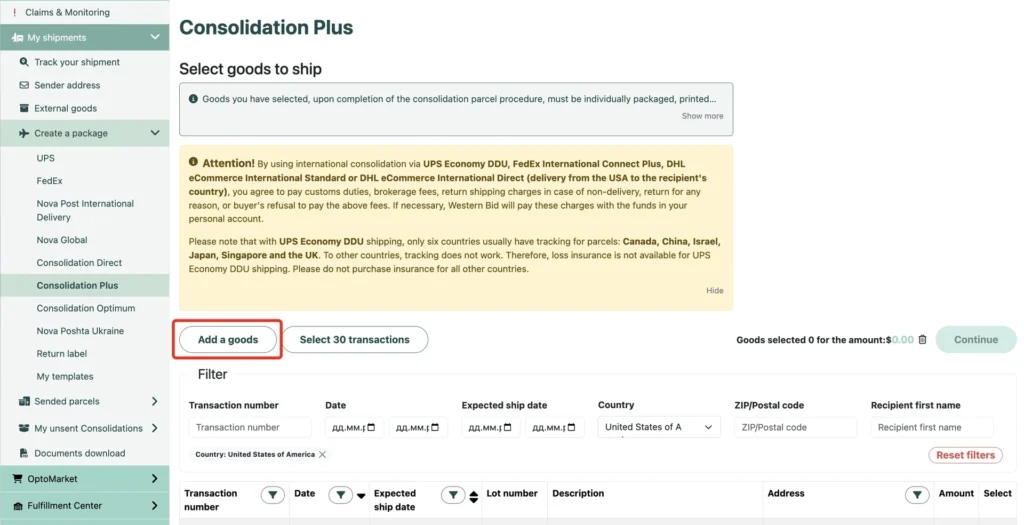
On the “Select goods to ship” page, click “Add a goods” to enter the item details manually.
An item that is already linked to a transaction in Western Bid can be added using the “Select from transactions” button.
Orders from eBay and Etsy can be imported into Western Bid, so you do not have to enter the recipient details, value and item description manually.
Step 19
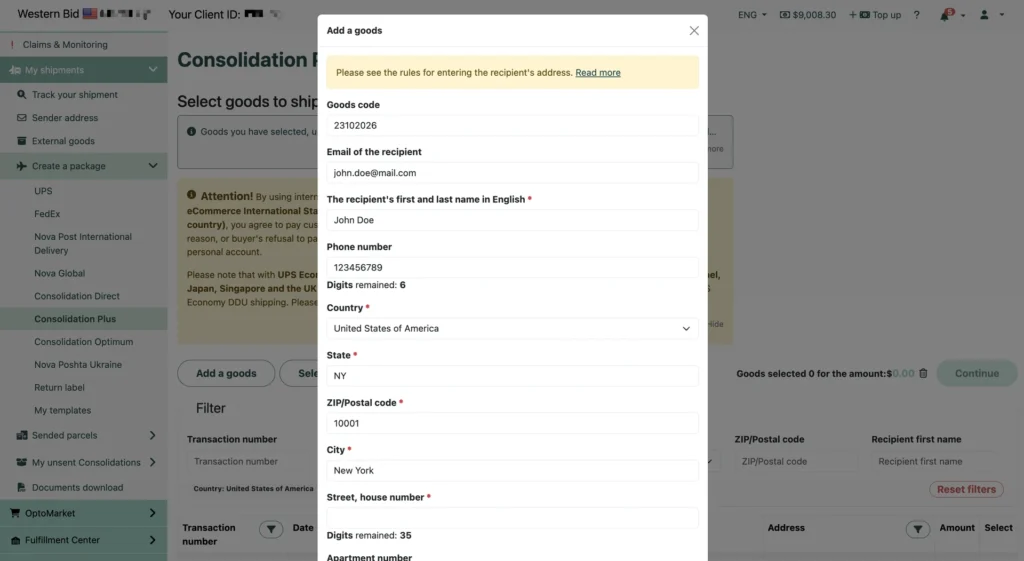
Fill in the item details, contact information and the recipient’s address. Required fields are marked with an asterisk.
The goods code is an internal identifier that you assign to the item yourself. For example, you can use a sequential or stock number.
Check the recipient’s address
Before creating the parcel, confirm the address with the recipient and check it in Google Maps. Make sure that:
- the street, house number and apartment number are entered without errors;
- the city, region or state, and postal code match each other;
- Google Maps finds the specific address without ambiguity.
Google Maps helps to spot errors, but it does not guarantee that the chosen delivery service will accept the address. Restrictions or additional rates may apply to islands and remote areas. Check delivery availability in the Western Bid calculator.
If you have doubts about the address, clarify the details with the recipient before creating the parcel.
Step 20
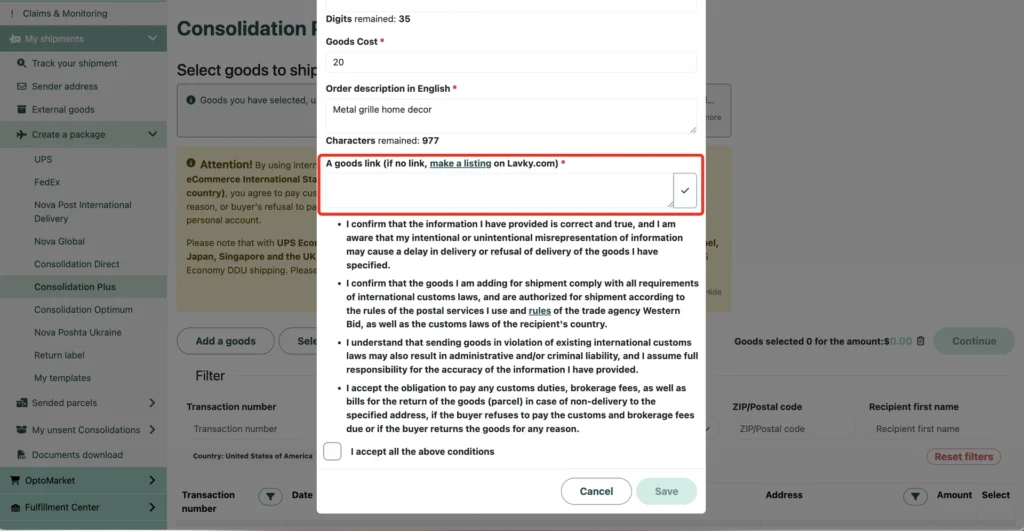
Enter the value of the item, add its exact description in English and a link to the item. Read the item description requirements.
If the parcel contains different items, add each of them separately. Items that make up one set can be entered as a single line, with a note in the description that it is a set. For example: pottery tool kit.
For several identical items, enter their quantity. For example: set of 12 mugs.
Copy the link to the page of the sold item on Etsy, another marketplace or your online store and paste it into the “A goods link” field. If there is no such link, create a listing on Lavky and add a link to it.
Step 21
Check that the link to the item has been copied correctly. Click the ✓ button to the right of the field — the item page should open in a new browser window.
If the page does not open, check and correct the link.
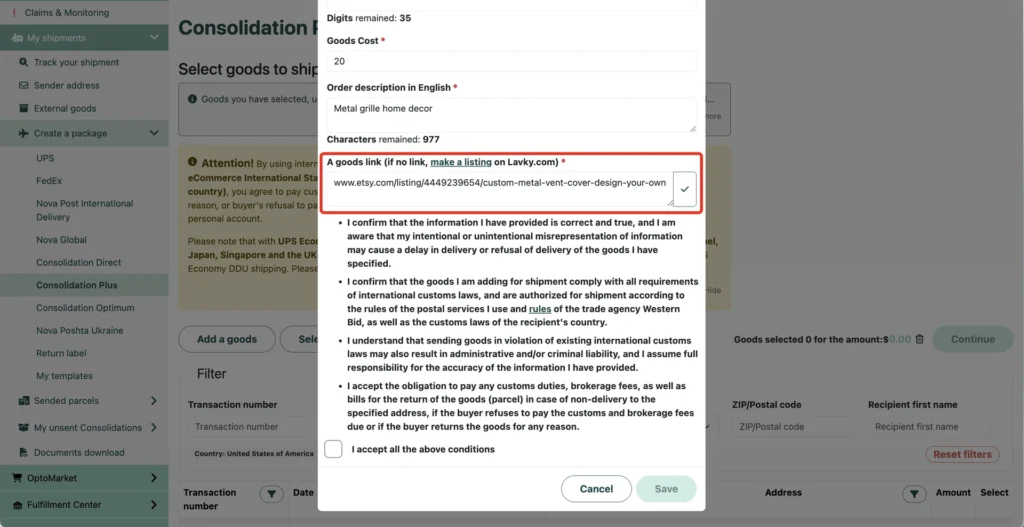
Step 22
Read the shipping terms, tick the box to agree to them and click the “Save” button.
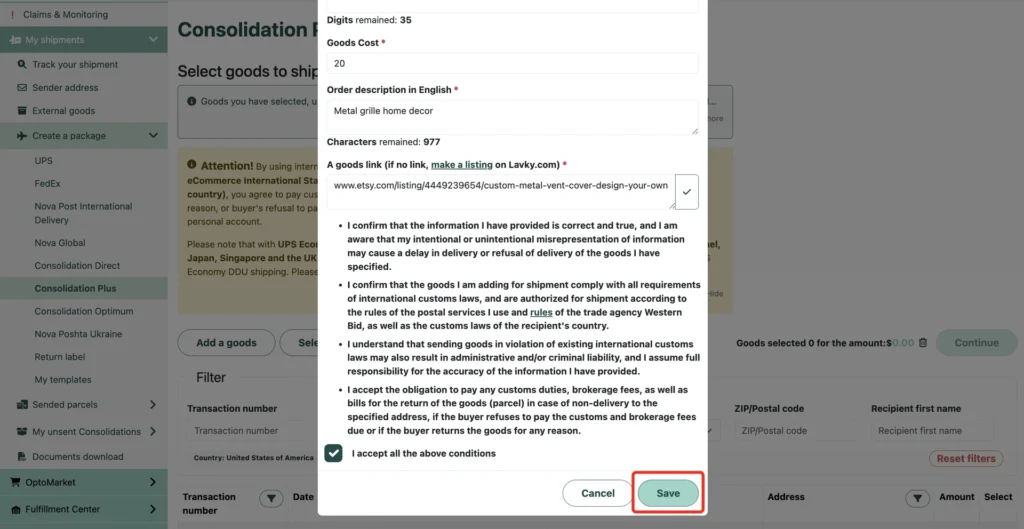
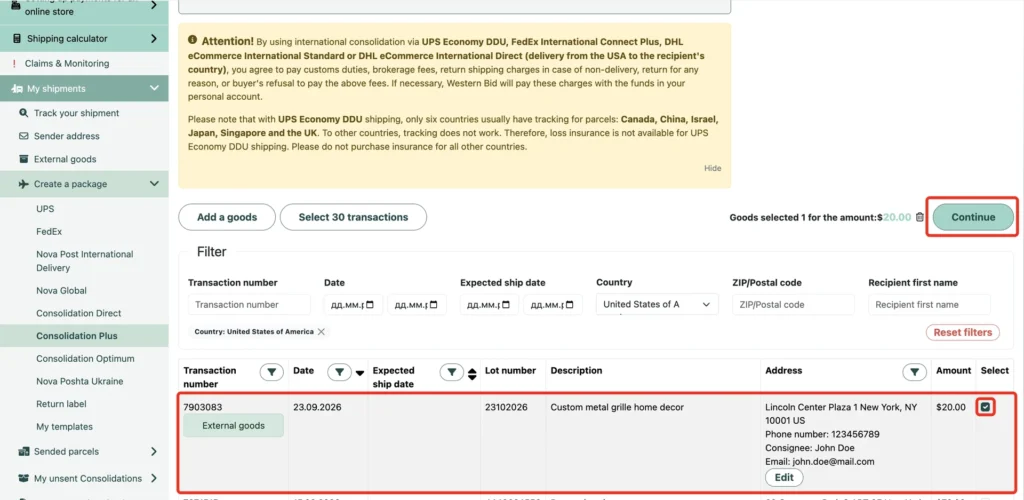
Step 23
After saving, the item will appear in the table marked “External goods”. External goods are items that are not linked to a transaction made through Western Bid.
Tick the box in the “Select” column next to the item you need and click the “Continue” button.
Step 24
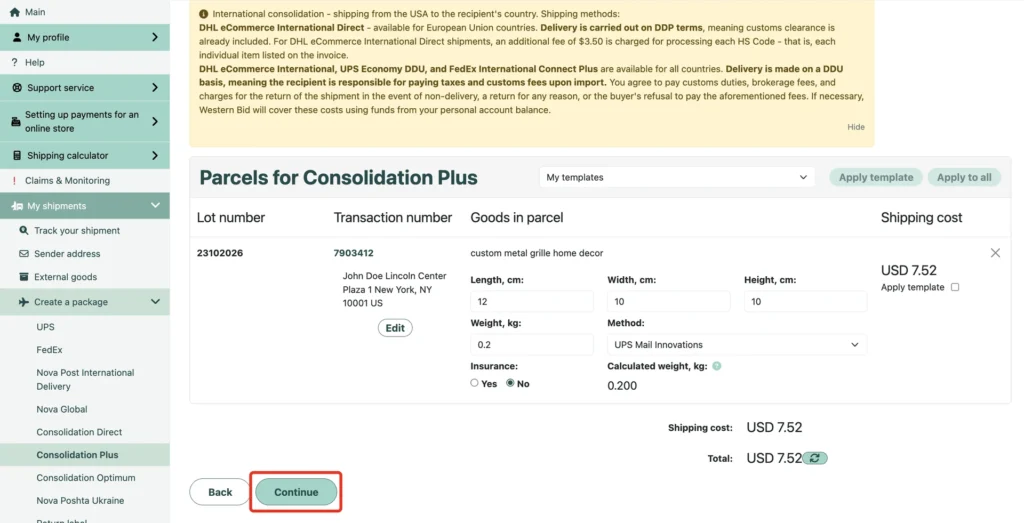
You will be taken to the shipping cost review page. Check the recipient details, item description, parcel dimensions and weight, selected delivery method, insurance and the calculated shipping cost. Edit the details if necessary.
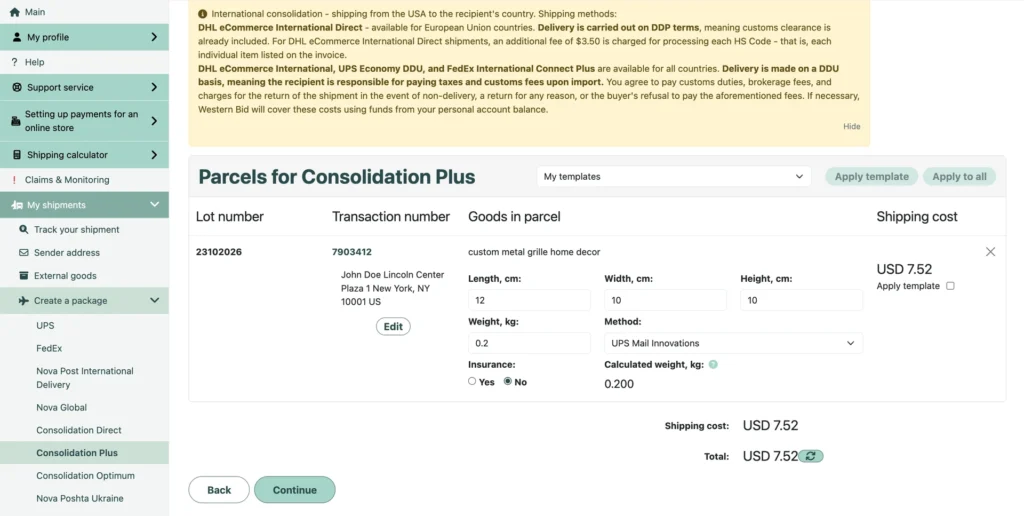
Step 25
After checking the parcel details and shipping cost, click the “Continue” button.
Completing the customs declaration
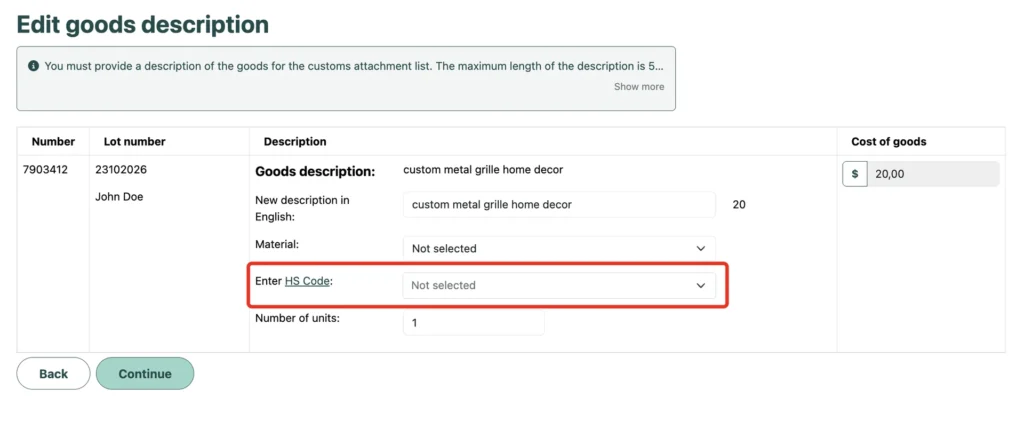
Step 26
On the “Edit goods description” page, check the item description in English, select the material and choose the appropriate HS code. Also check the number of units.
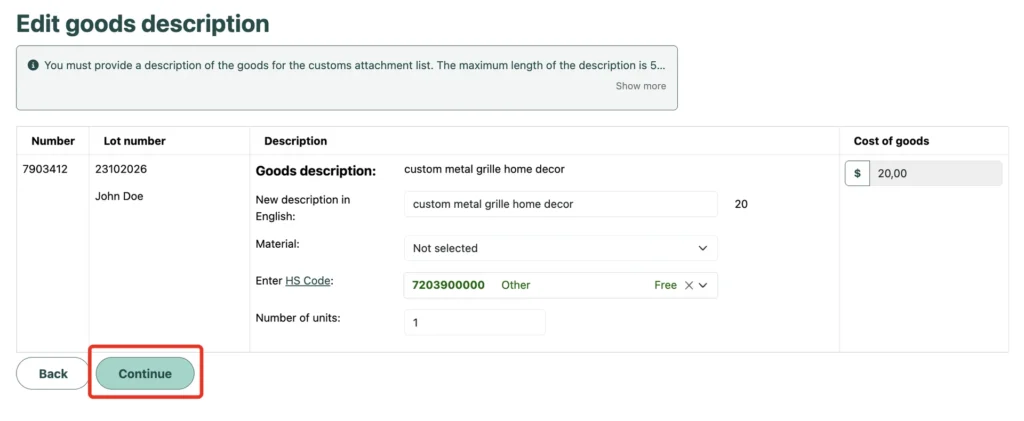
Step 27
Make sure the HS code is selected correctly and click the “Continue” button.
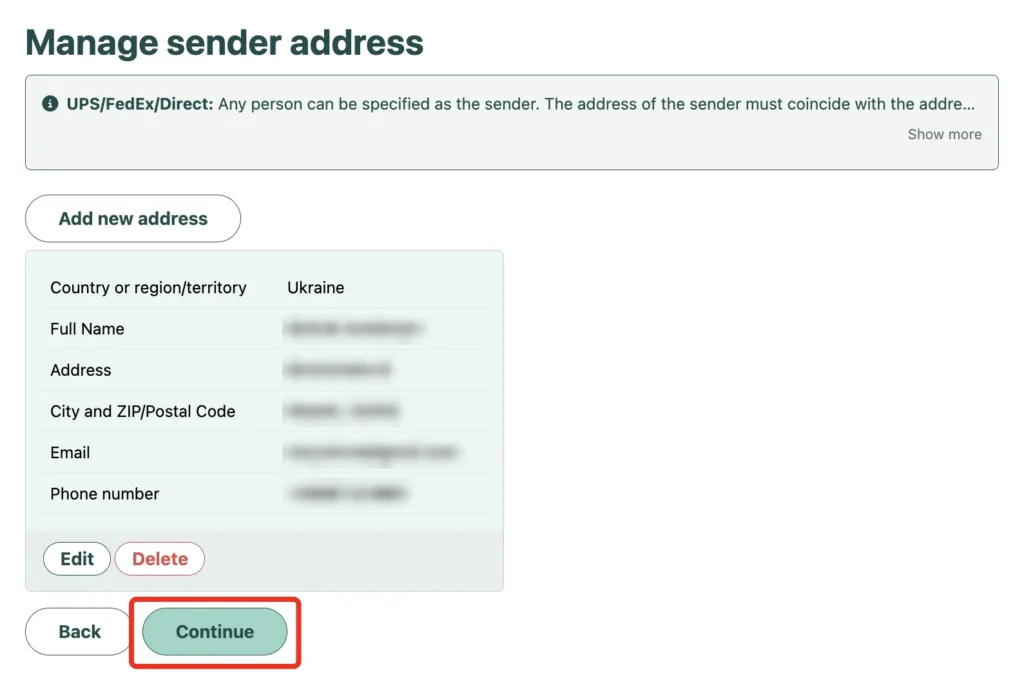
Step 28
Check the sender details. If necessary, edit the existing address or add a new one. If all the details are correct, click the “Continue” button.
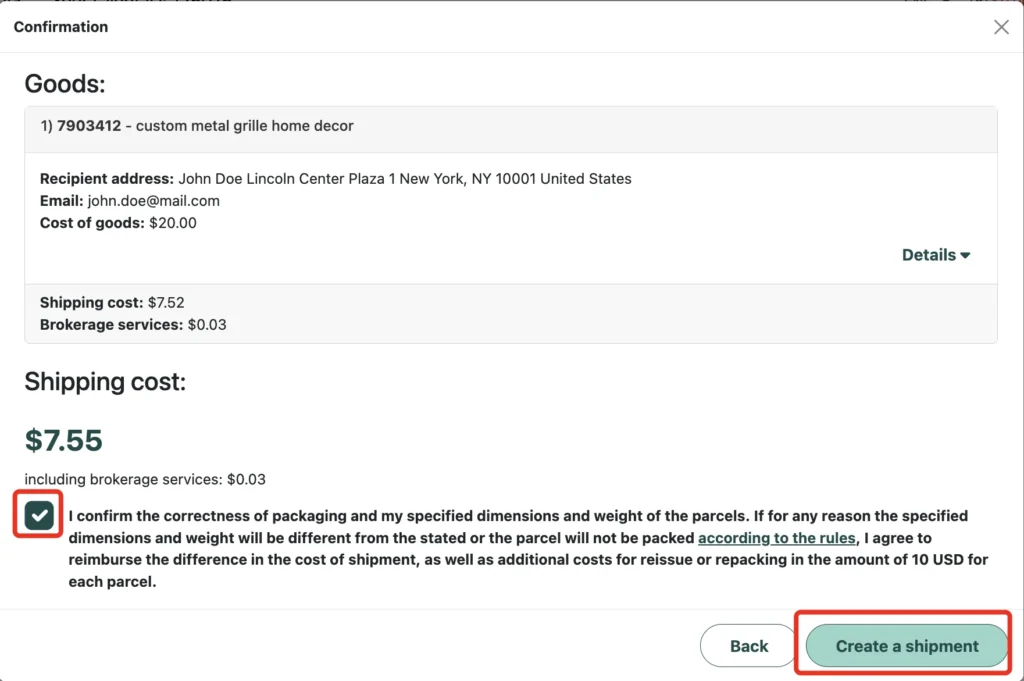
Step 29
Check the item description, recipient’s address, value of the contents, shipping cost and brokerage services once more.
Read the terms regarding the accuracy of the stated parcel dimensions and weight and tick the box to agree. Then click the “Create a shipment” button.
Paying for shipping
Step 30
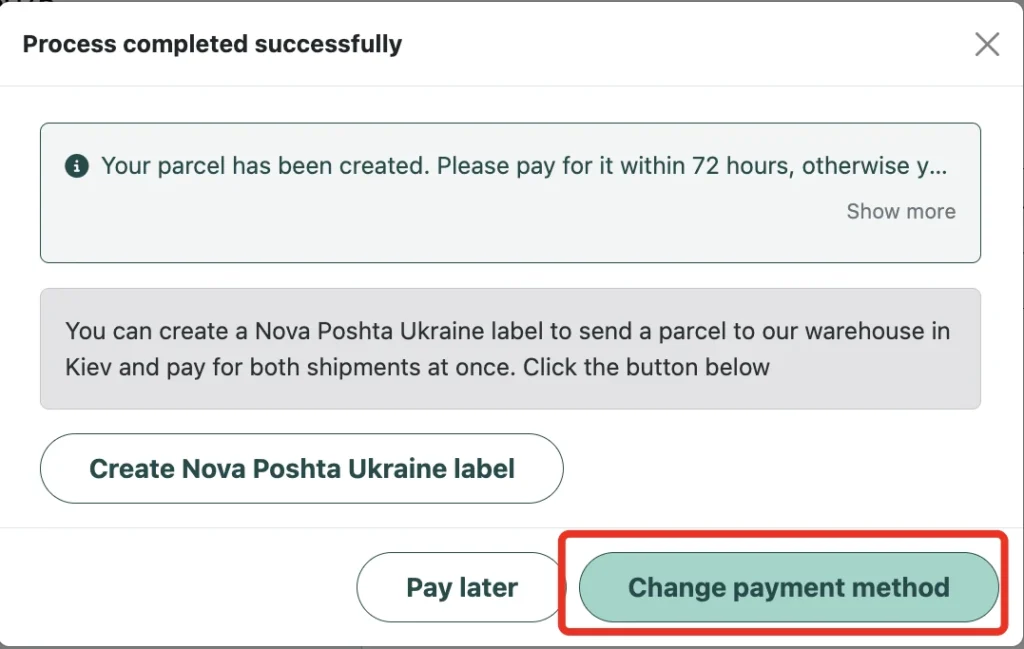
After the parcel is created, pay for shipping within 72 hours. To proceed to payment, click the “Change payment method” button.
If needed, on this page you can also create a “Nova Poshta Ukraine” label to send the parcel to the Western Bid center in Kyiv.
Step 31
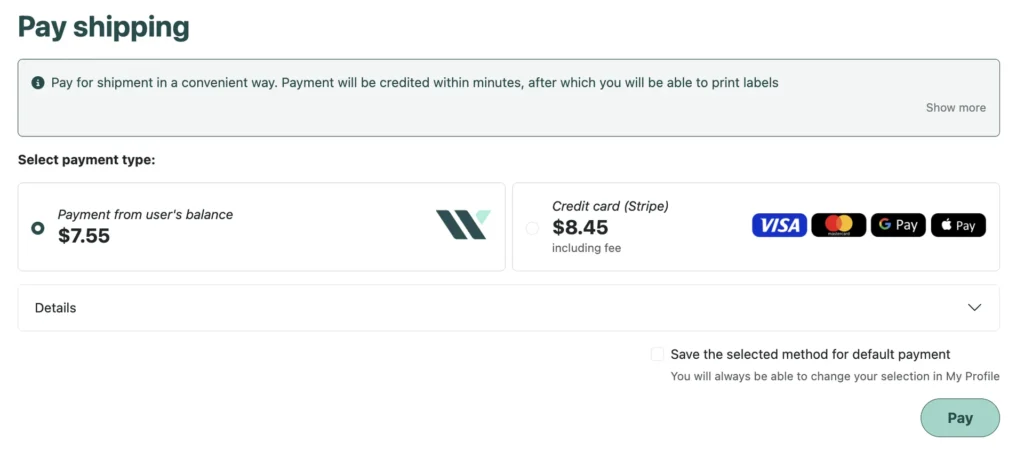
Choose a payment method: from your Western Bid balance or by bank card via Stripe. Before paying, check the total amount: a fee may be added when paying by card.
Click the “Pay” button.
Printing the label and preparing the parcel
Step 32
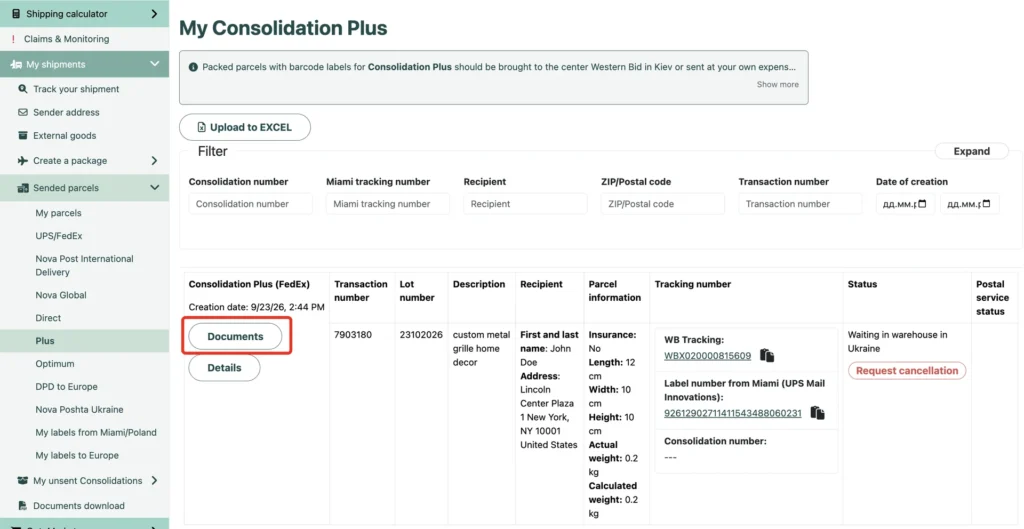
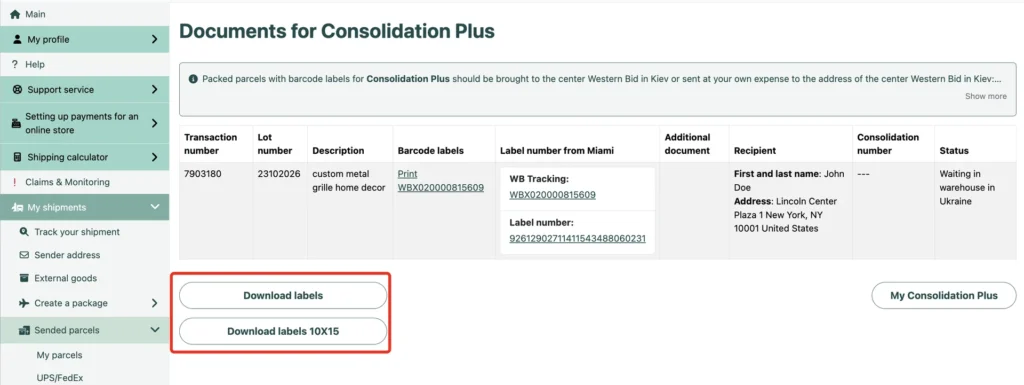
After payment, go to “My shipments” → “Sended parcels” → “Plus”. Find the parcel you created and click the “Documents” button.
Step 33
Choose the label format:
- for a thermal printer, click “Download labels 10 × 15”;
- for a regular printer, click “Download labels”.
Step 34
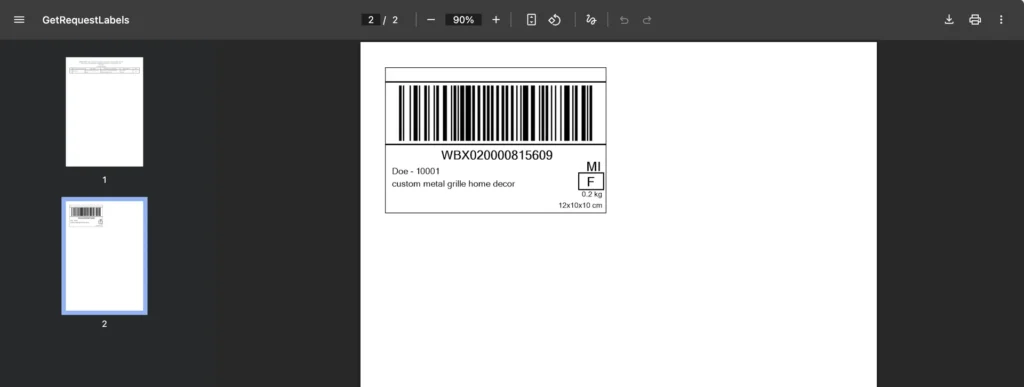
Open the downloaded file, print the barcode label and attach it securely to the parcel.
If you do not have a printer, clearly write the WBX number shown under the barcode on the parcel. Please note: in this case, processing of the parcel in Kyiv may take one business day longer.
How to hand over the parcel to the Western Bid center in Kyiv
Deliver the prepared parcel to the Western Bid center in Kyiv in person or send it by Nova Poshta.
A Nova Poshta shipment can be created and paid for in your Western Bid personal account with a 10% discount. The procedure is described in the next step.
Do not confuse the Western Bid label with the Nova Poshta express waybill. The Western Bid barcode label is used for the onward international shipment and is attached to the parcel. The Nova Poshta express waybill is needed to deliver this parcel to the Western Bid center in Kyiv.
Step 35
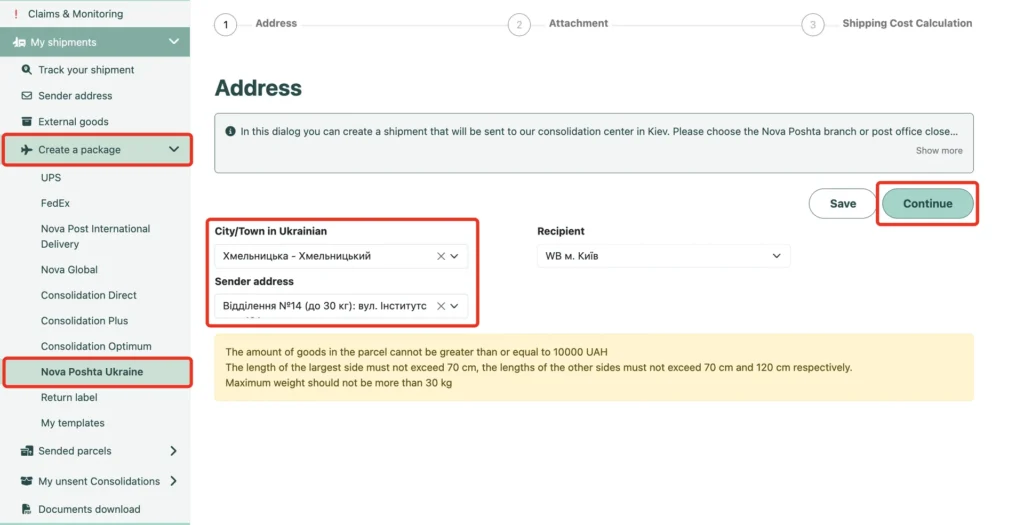
In your personal account, open “Create a package” → “Nova Poshta Ukraine”.
Select the city or town and the Nova Poshta branch from which you plan to send the parcel. The recipient field “WB м. Київ” will be filled in automatically. Then click the “Continue” button.
If the selected branch is closed or unavailable, the parcel can be sent with the same waybill from another nearby Nova Poshta branch.
Step 36
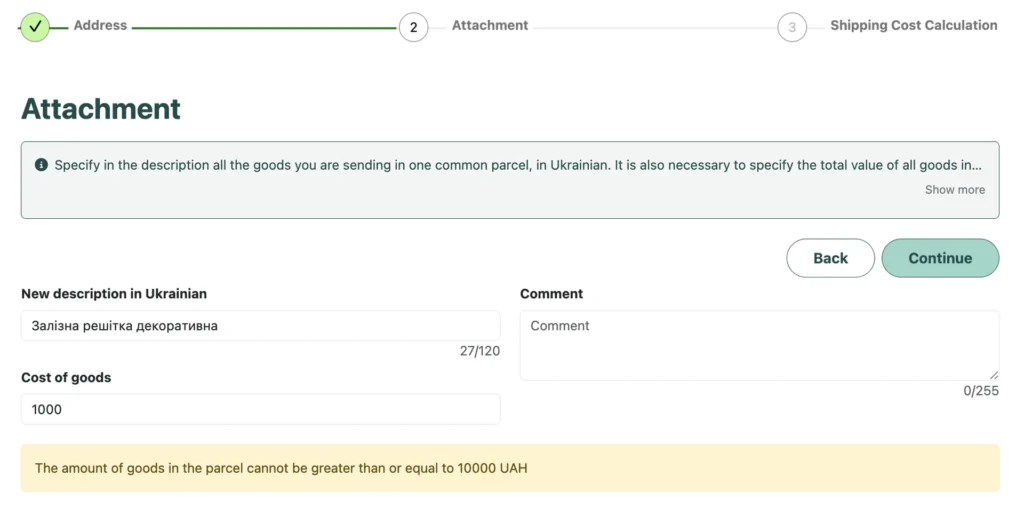
In the “New description in Ukrainian” field, list all the items in the parcel. In the “Cost of goods” field, enter the total estimated value of the items in hryvnias. Add a comment if necessary.
The total value of the contents must be less than UAH 10,000.
Click the “Continue” button.
Step 37
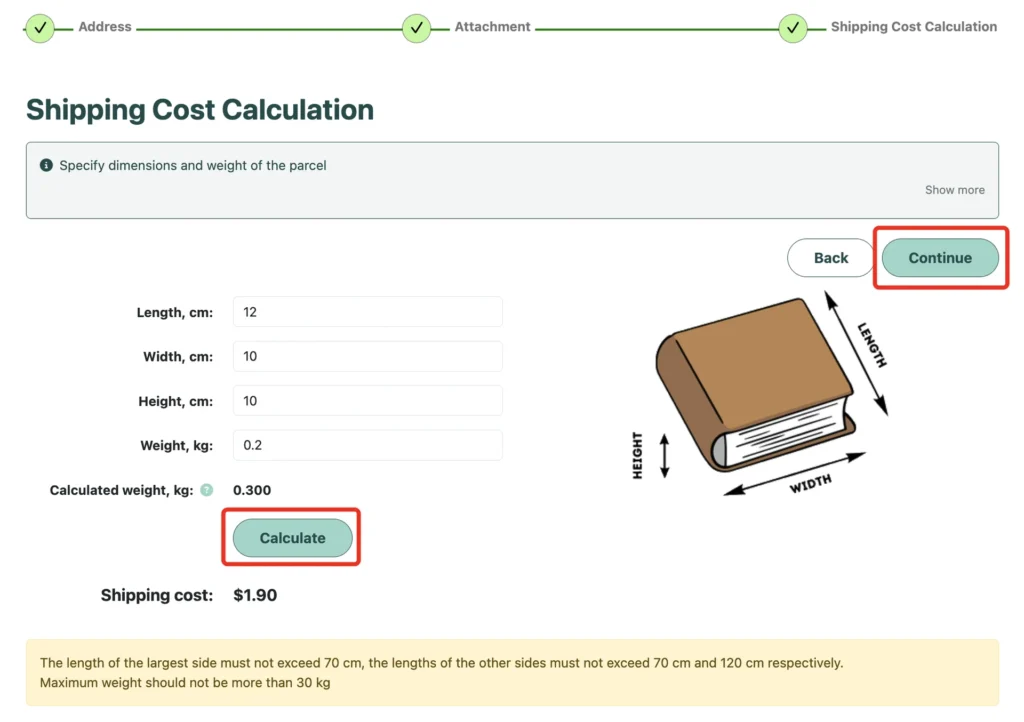
Enter the length, width, height and actual weight of the packed parcel. Click the “Calculate” button.
Check the calculated weight and shipping cost, then click the “Continue” button.
Step 38
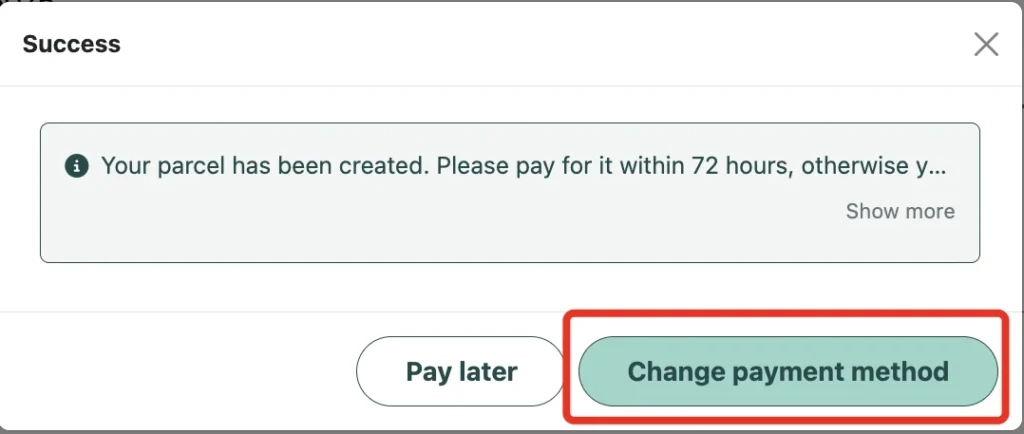
After the shipment is created, pay for it within 72 hours. Click the “Change payment method” button.
If you do not plan to pay for the shipment right away, click “Pay later”.
Step 39
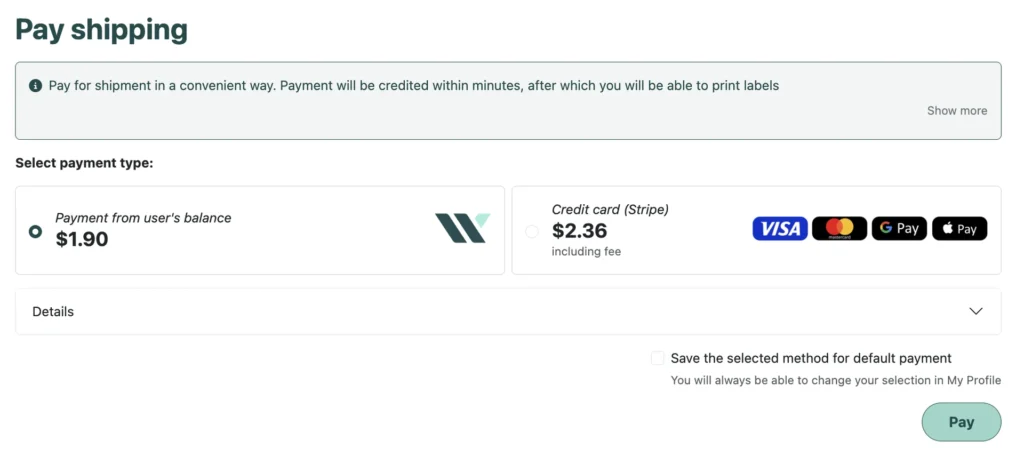
Choose a payment method: from your Western Bid balance or by bank card via Stripe. Please note that a fee is added to the shipping cost when paying by card.
Check the total amount and click the “Pay” button.
Step 40
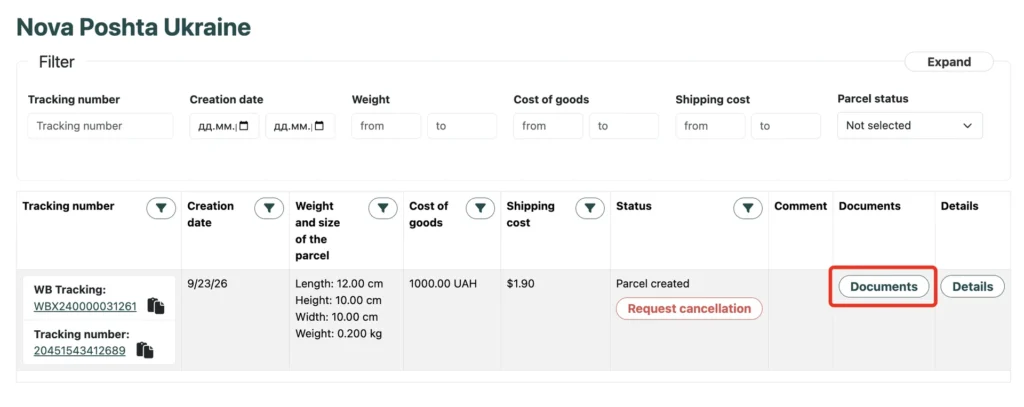
Once the payment has been processed, go to “My shipments” → “Sended parcels” → “Nova Poshta Ukraine”.
Find the shipment you created and click the “Documents” button.
Step 41
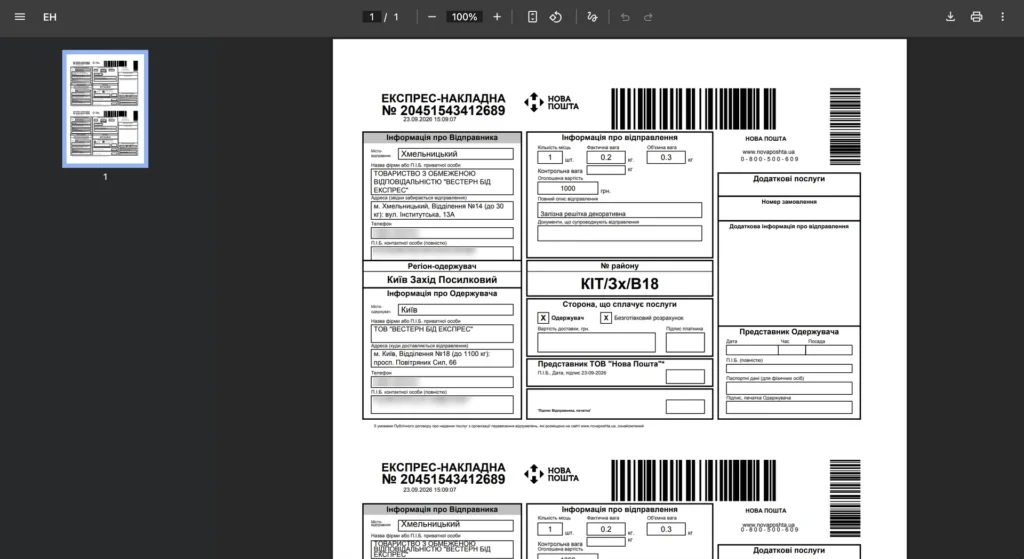
On the documents page, click the “Invoice” button to open the generated Nova Poshta express waybill.
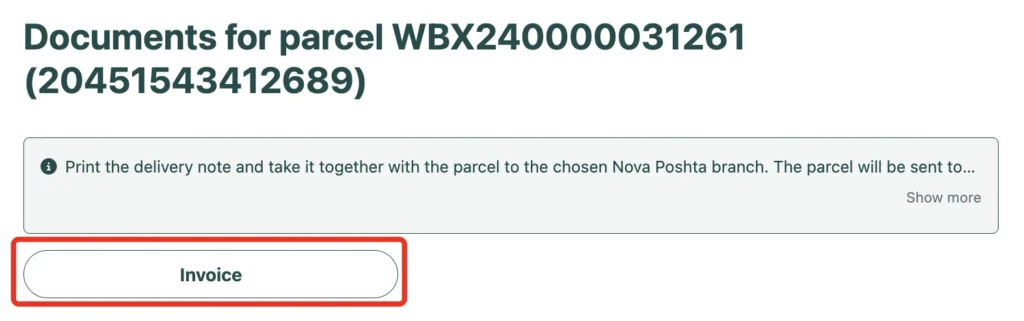
Step 42
Print the express waybill and take it, together with the packed parcel, to the selected Nova Poshta branch. The shipment tracking number is shown on the waybill and in your Western Bid personal account.
Ready to create a shipment? Register with Western Bid or go to your personal account to create a parcel.
Frequently asked questions
How can I speed up repeat shipments?
How do I add an item if it is not in the transaction list?
Click “Add a goods” and enter the item details. After saving, select the item in the list and continue creating the parcel.
Why can the shipping cost differ from the preliminary calculation?
The calculator determines the cost based on the parcel dimensions and weight you enter. If the actual parameters differ from the stated ones, the shipping cost may change. Measure and weigh the parcel after it has been packed.
What should I do if the system does not accept the recipient’s address?
Check the full address in Google Maps, including the street name, house number, city and postal code. If the system does not accept the address, contact the recipient and ask them to confirm that the details are correct and complete.
What should I do if I do not have a printer?
You can write the label number on the parcel by hand. Keep in mind that in this case, processing of the parcel at the Western Bid center in Kyiv may take one business day longer.
How do I send a parcel to the Western Bid center from another city in Ukraine?
Create a Nova Poshta shipment in your Western Bid personal account, select the city or town and a convenient branch, then pay for shipping. A 10% discount applies when you create the shipment through your personal account.
Useful materials
Other delivery methods
- UPS Express and UPS Ground Delivery
- Nova Global Delivery
- Nova Poshta International Delivery
- Shipping to Europe from Ukraine via DPD
- Consolidation Optimum
- Consolidation Plus
- Consolidation Direct
