Templates in Western Bid help you form consolidations faster if you regularly ship uniform items or use packaging of the same size. Instead of manually entering the same parameters for each shipment, you can save typical values once and reuse them.
How to use templates
In the Personal Account, in the ‘Shipment to the customer’ section there is a ‘My Templates’ menu. If you sell uniform products and/or use packaging of the same size, this feature will come in handy. You can use an unlimited number of templates for your shipments.
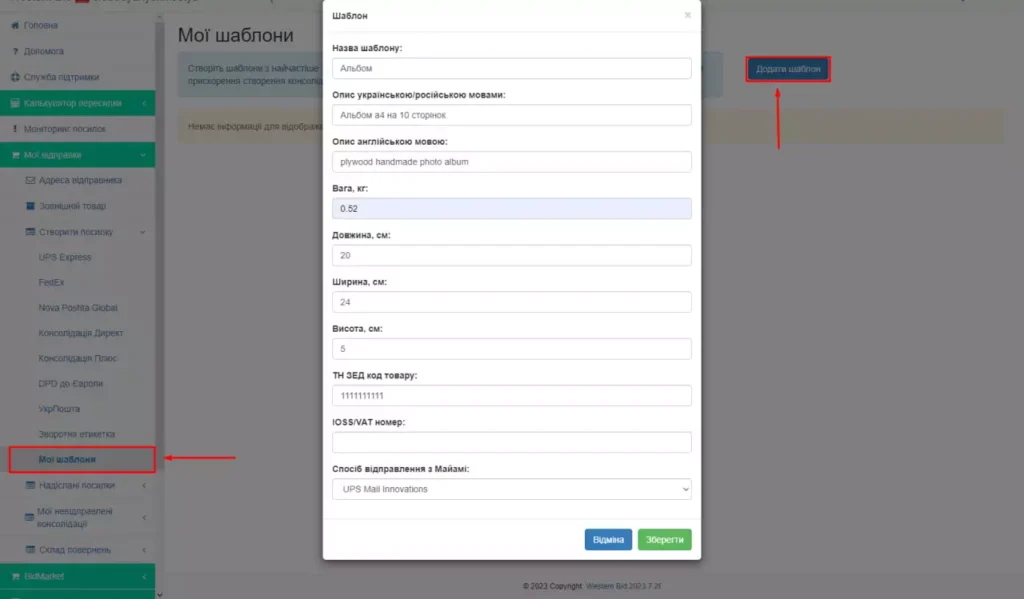
To use the feature, go to “My Shipments” – “Create Shipment” – “My Templates” and click on “Add Template”.
In the window that opens, fill in the fields that are typical for this type of product. You will be able to change the values later, both in the template itself and during the consolidation process.
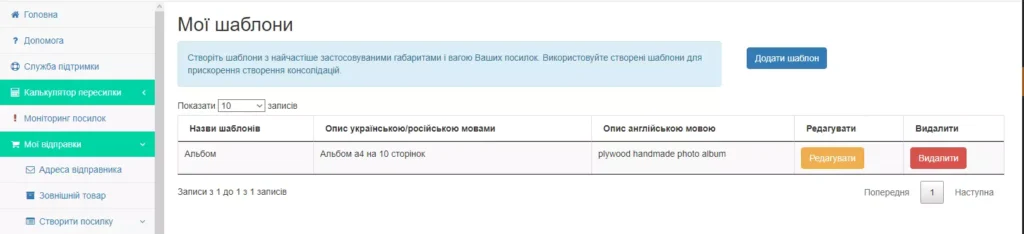
All created templates are stored in the “My Templates” section.
From now on, when selecting items for consolidation, you will be able, if you wish, to apply a saved template to any shipment or to all shipments that you send using Plus or Direct consolidation.
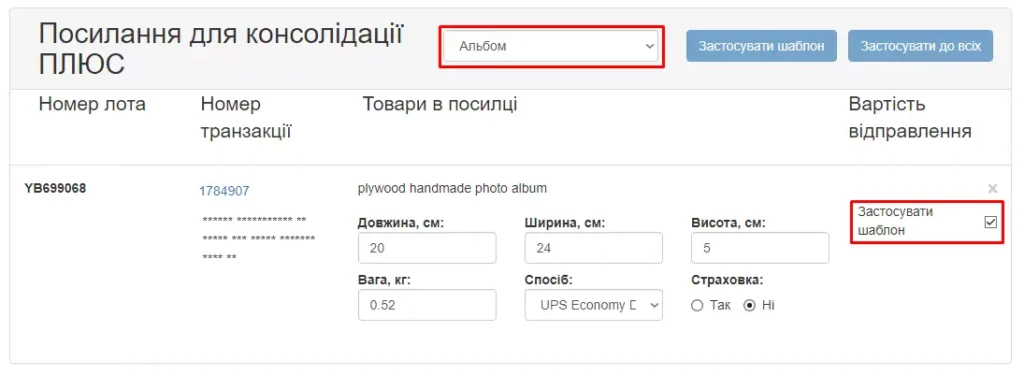
Please note! When creating a template, you choose the desired shipping method. However if you are creating a shipment, applying a template, to an address where the shipping method chosen in the template cannot be used, you will need to manually select that method.
For example: in the template you entered the package dimensions, and selected the shipping method “UPS Surepost”. You want to apply this template to create a shipment to France. After applying the template, the dimensions will automatically be the ones you need, and the shipping method will not change, since for France the “Economy DDU” applies. Therefore you will need to manually select the shipping method.
Stages of working with templates
| Stage | What needs to be done | Result |
|---|---|---|
| 1. Creating a template | Open “My templates” and click “Add template” | A standard parameter set is created |
| 2. Filling in fields | Enter typical data for this type of product | The completed template stores reusable parameters |
| 3. Saving | Save the template in the ‘My templates’ section | The template becomes available for future use |
| 4. Applying | Select the template when forming the consolidation | The template is applied to one or all shipments |
| 5. Verification | Clarify the shipping method if it is not suitable for the destination country | The shipment is processed correctly |
Frequently Asked Questions
Where in the personal account are the templates located?
Where in the personal account are the templates located?
Templates are located in the “My Shipments” – “Create a Shipment” – “My Templates”.
Why are templates needed when forming consolidations?
Why are templates needed when forming consolidations?
This feature is useful if you sell identical items and/or use packaging of the same size. Templates help reuse standard shipping parameters.
How to create a new template?
How to create a new template?
You need to go to “Create shipment” → “My templates” and click “Add template”, after which you should fill in the fields that are typical for this type of goods.
Can the data in the template be changed later?
Can the data in the template be changed later?
Yes. The value can be changed later, both in the template itself and during the consolidation process.
Where are the created templates stored?
Where are the created templates stored?
All created templates are stored in the “My Templates” section.
Templates in Western Bid save time not because they automate everything without checking, but because they eliminate repetitive manual work where you have many similar shipments.
