If your Etsy shop uses the Etsy Payments payment system, orders will automatically appear in your dashboard only if you have authorized the shop in the Western Bid system.
Etsy Shop Authorization in Western Bid
This type of integration will help you synchronize orders from the Etsy store with your Western Bid account in just a few clicks. Synchronized orders will appear as an external product in your account, from which you can create a shipment using your preferred method, namely:
– UPS
– FedEx
– Nova Global
– Nova Poshta international delivery
– Direct Consolidation
– Consolidation Plus
– Consolidation Optimum
– DPD to Europe
To automatically synchronize Etsy orders, you need to authorize your Etsy shop in the Western Bid client account. This procedure is performed only once and can be completed in two ways.
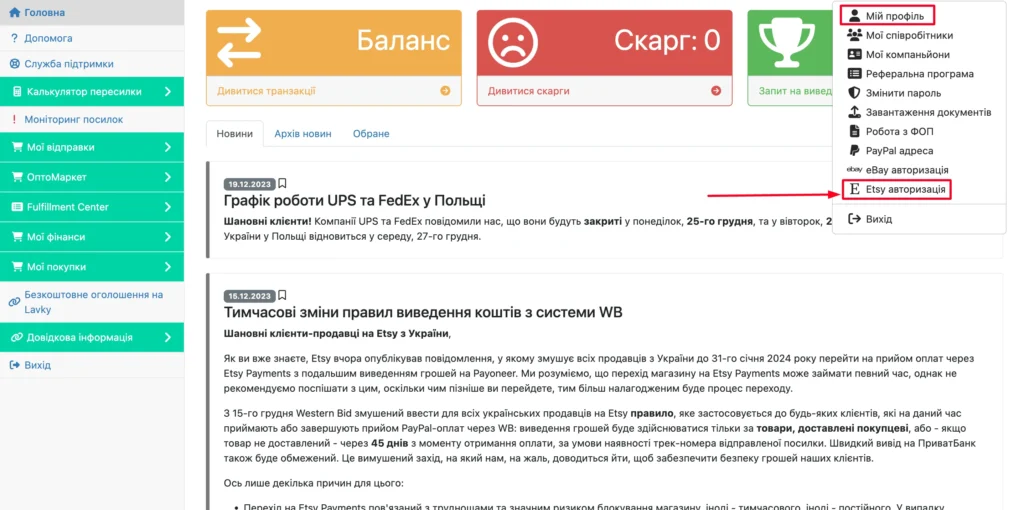
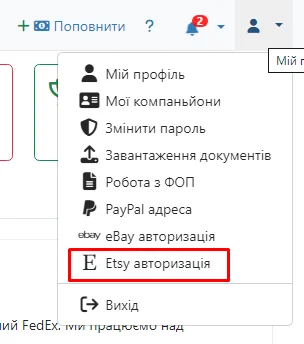
First method: in the Western Bid account, click the user icon in the top-right corner and select “Etsy Authorization”:
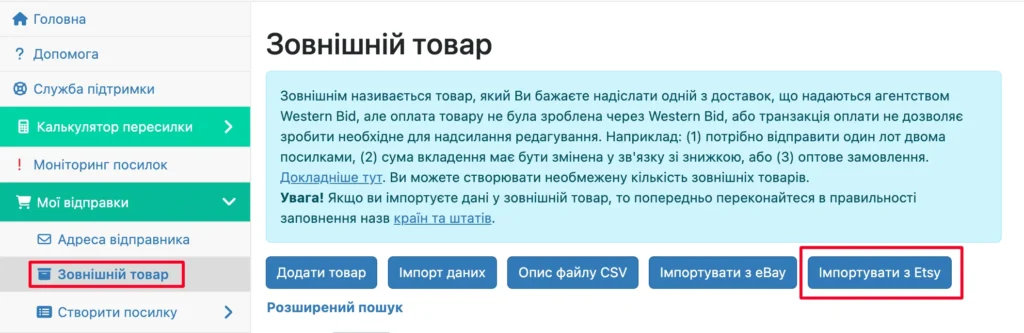
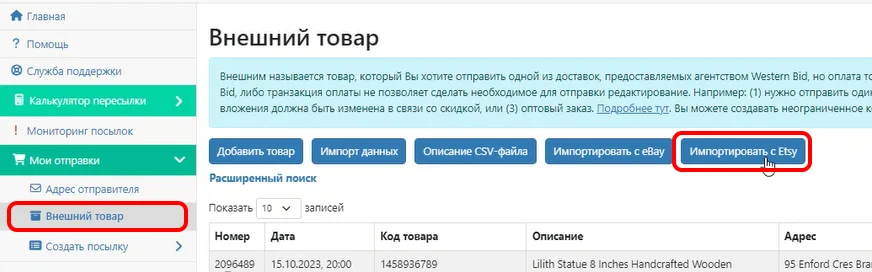
Second method: go to the menu item “My shipments” – “External product” and click the “Import from Etsy” button:
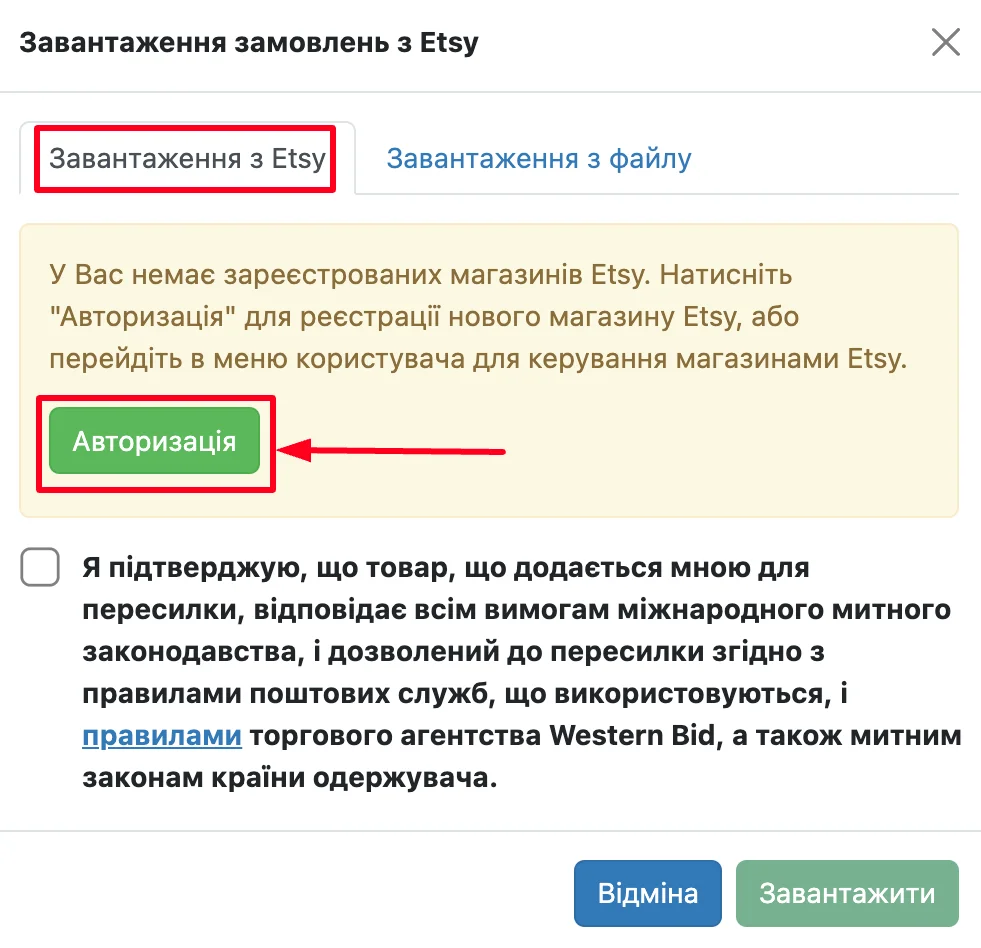
Next in the window that opened, in the “Import from Etsy” tab, click the “Authorize” button and indicate that you agree to the forwarding rules.
After clicking the “Authorize” button – the Etsy shop login page will open.
You need to enter the login and password for your store (which you want to link to the Western Bid system for synchronizing orders).
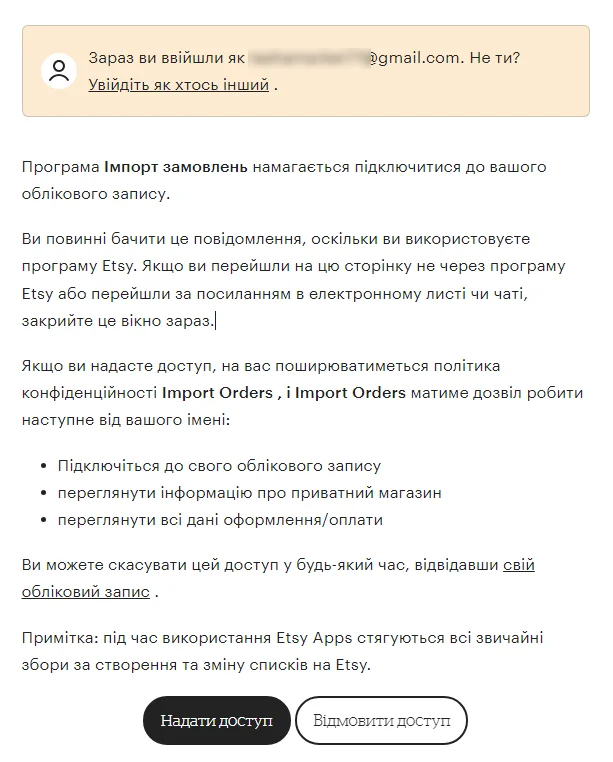
Then a window with the terms of cooperation will appear, where you need to grant authorization.
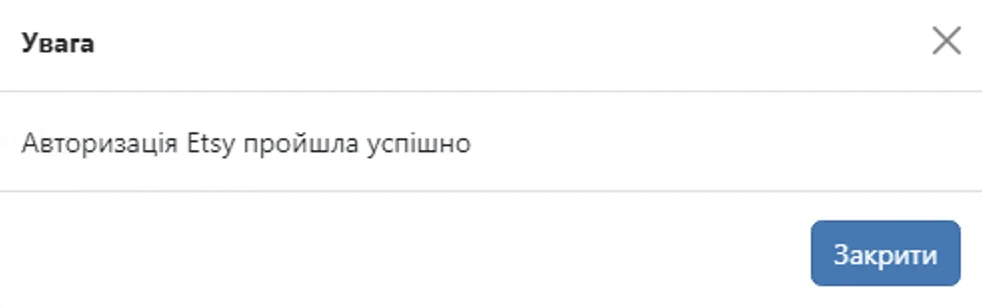
Next, if everything has been completed successfully, you will return to your Western Bid personal account and see a notification that the login was successful.
After successful Etsy authorization, you can synchronize orders for the period you choose.
To do this, in the Western Bid account go to the menu item “My Shipments” – “External product” and click the “Import from Etsy” button.
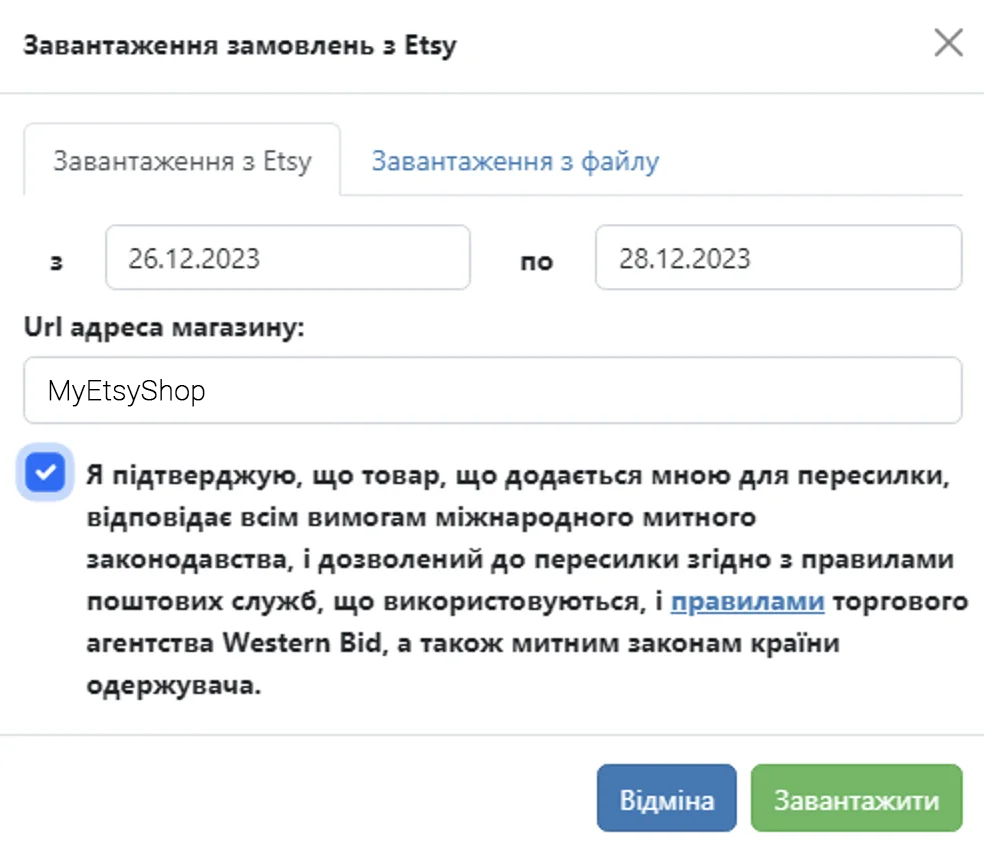
There in the “Loading from Etsy” tab you will be able to select a previously added Etsy shop (if there are several), and if there is only one added shop, it will be displayed automatically.
Choose the period for which you need to add orders, and click the “Load” button.
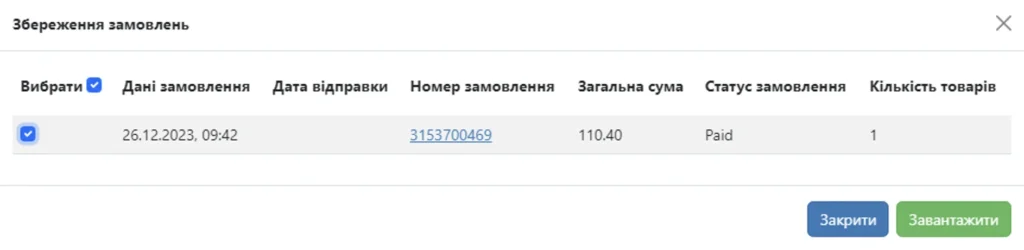
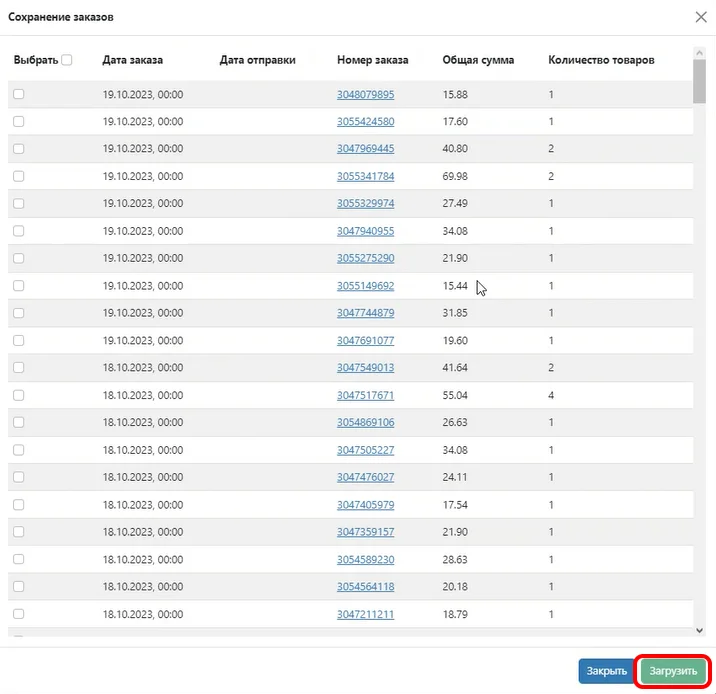
In the next window you will see a list of available orders, and you will be able to mark which ones you want to add to the Western Bid system.
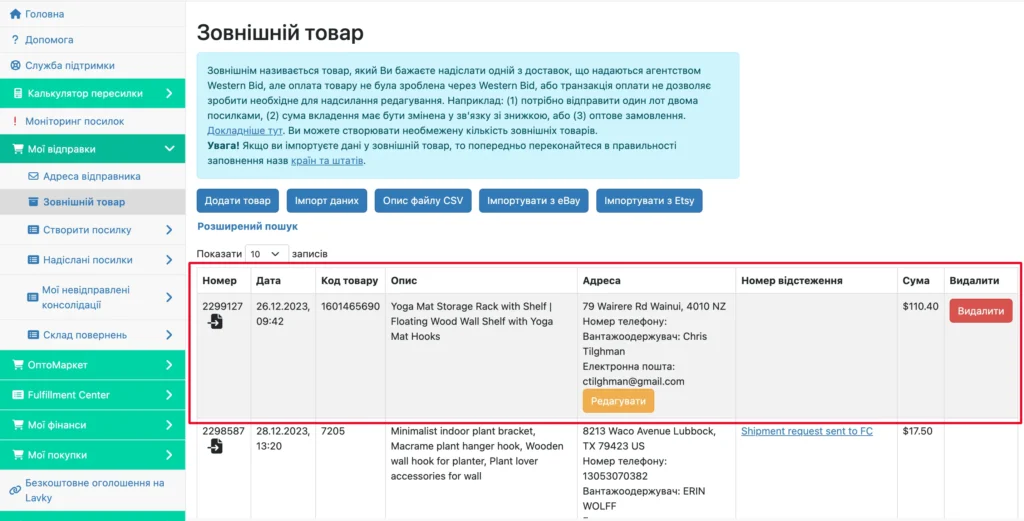
After you have marked the required orders, you click the “Upload” button, and they will appear in your “External product” menu. For the next import of orders, you won’t need to authorize the store; you only need to enter the store name and select the period for which you want to add orders.
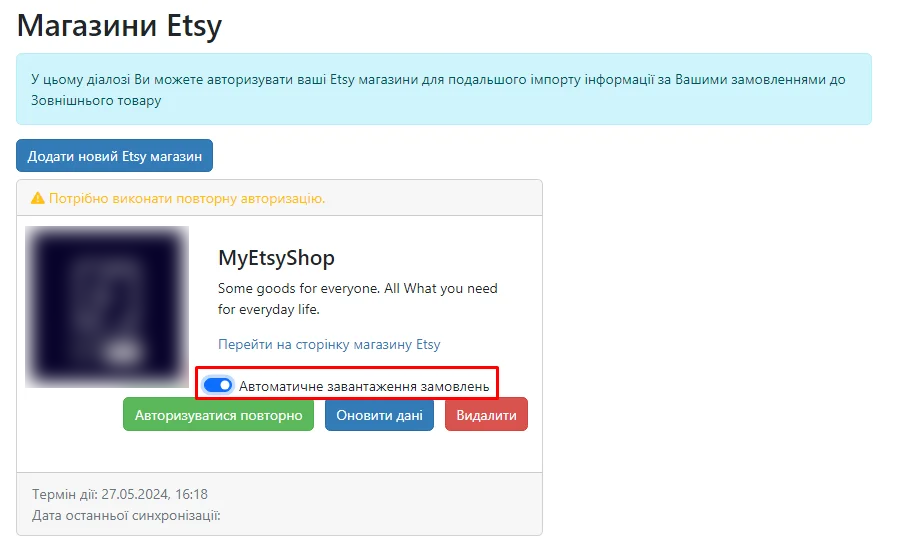
For automatic loading of orders into the Western Bid system, after connecting the store – go to the menu item “Etsy authorization”.
Next, in the added store, check the “Automatic order download” option.
To process orders, you can:
– authorize your Etsy shop in the Western Bid system,
– synchronize your shop with the system KeyCRM,
– download in your Etsy shop a CSV file with orders, and then upload it to the Western Bid dashboard.
Also through the KeyCRM system you can immediately create shipments, more details – here.
How to authorize multiple Etsy shops in your Western Bid account
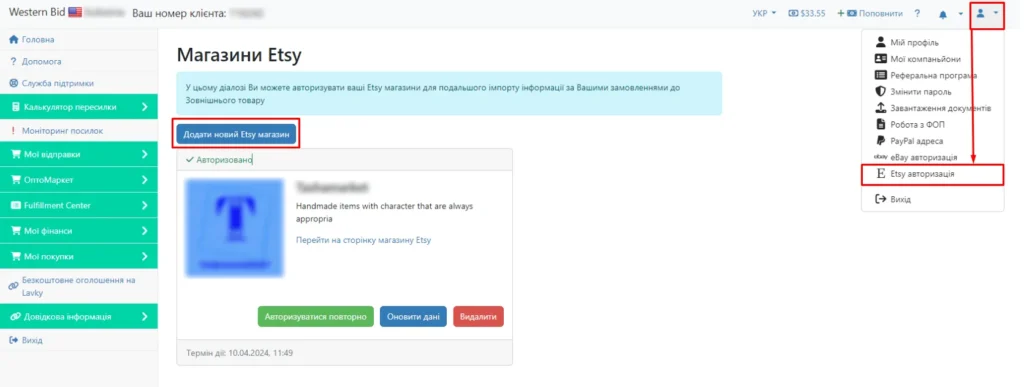
If you have already authorized one store and want to add another, you need to click on the user icon in the top right of your Western Bid account, go to the “Etsy authorization” menu item, and on the page that opens click “Add new Etsy store”.
After clicking the “Add new Etsy shop” button, the login page for the Etsy shop will open.
You need to enter the login and password for your shop (which you want to link to the Western Bid system for order synchronization).
Next will be a window with the terms of cooperation, where you need to grant authorization.
How to download a CSV file from Etsy
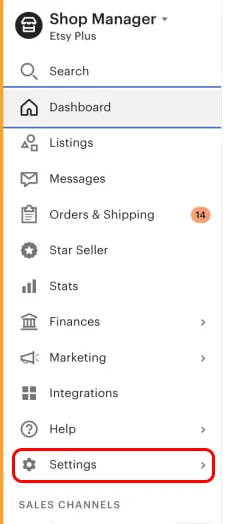
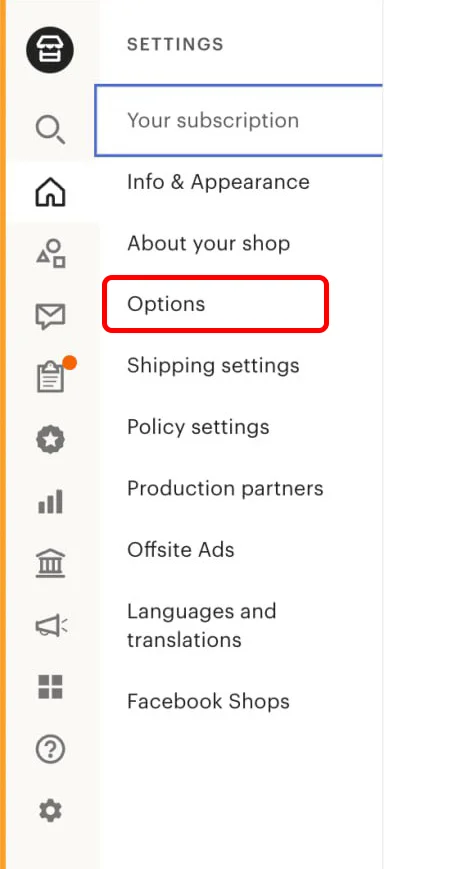
1. Open your store’s Shop Manager and click “Settings”.
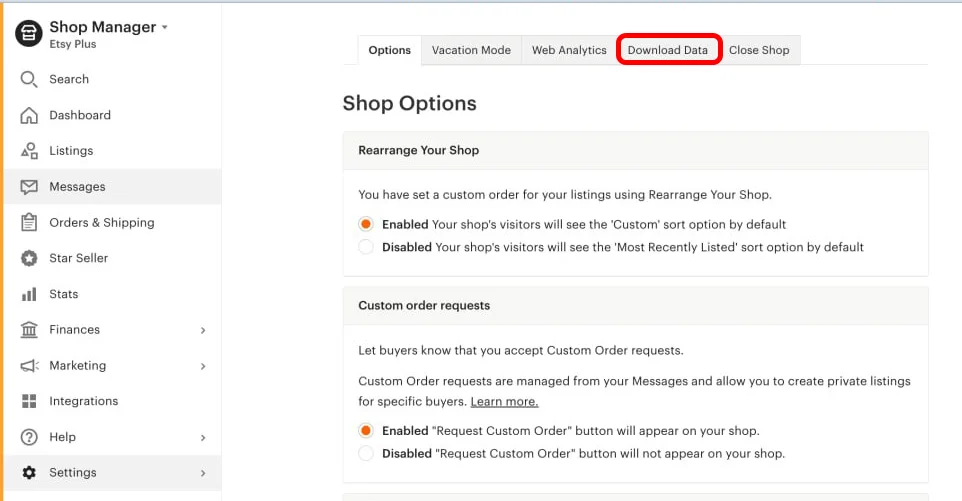
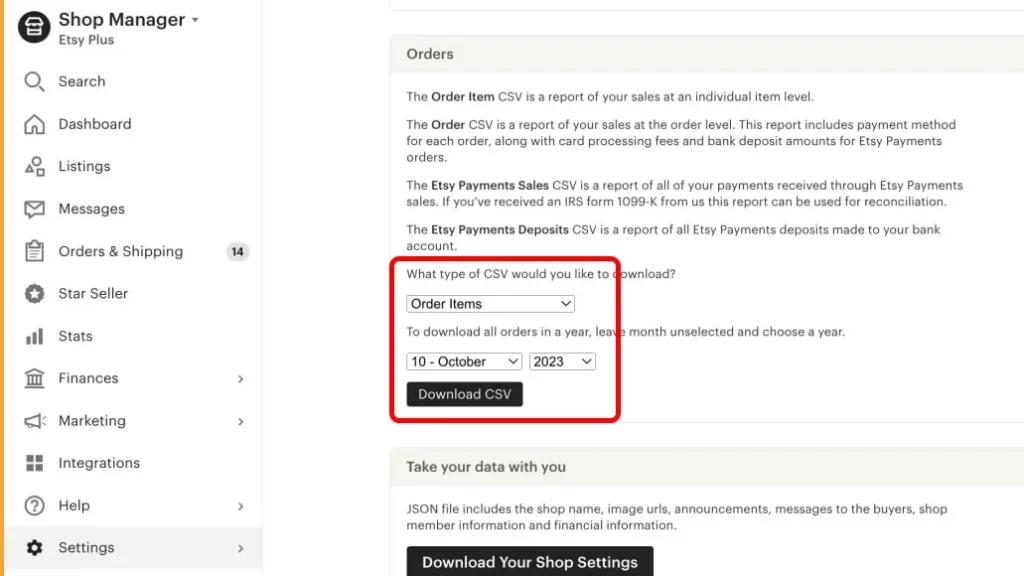
3. Go to the “Download Data” tab and scroll to the “Orders” item.
4. In the first drop-down list, select “Order Items”.
Below, select the month for which you want to download the order information.
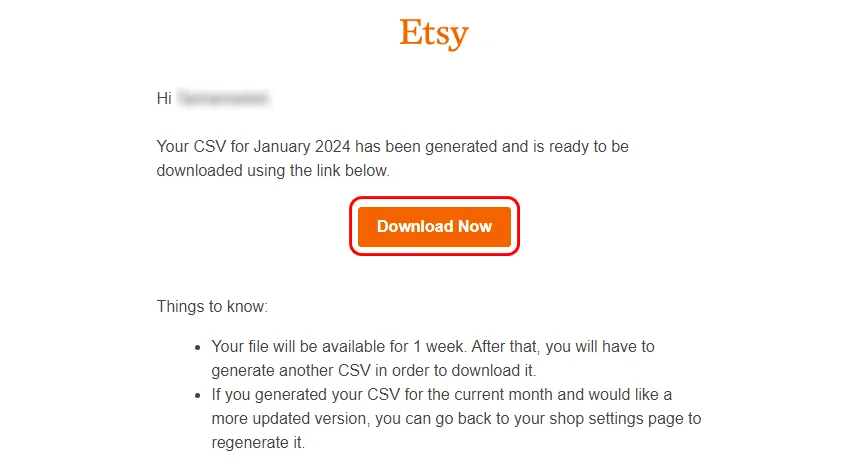
Click “Download CSV”. After clicking, you will receive an email to the email address linked to your Etsy shop with a link to the required file. Click the “Download Now” button and save this file.
How to upload a CSV file from Etsy to the Western Bid account?
1. In your Western Bid account, go to the tab “My Shipments” – “External product”, and click the button “Import from Etsy”
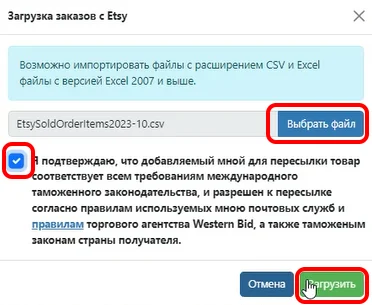
2. Click “Choose file” and select the prepared CSV file with orders from your Etsy shop.
Please indicate that you agree to Western Bid’s terms of service.
Click “Upload”
3. In the CSV file preview window, you can select multiple orders or all of them at once.
If, on Etsy, a single order contains multiple items, this will be shown in the “Quantity of items” column with the corresponding number and will be imported as separate transactions (one transaction per item).
If the order has already been shipped, you will see the shipping date in the corresponding “Shipping date” column.
Possible errors when downloading a file from Etsy
1. The file to upload to your Western Bid account must be in English. If you have a translator enabled in your store or browser settings, you need to review the file and translate it into English.
2. The index field is mandatory; after generating the file, check whether all transactions have an index specified. Please note, if the country does not have an index (Hong Kong or UAE), you should specify “00000”.
3. Also the State field should be specified with the correct code; review the file, as there may be a city name.
When uploading the import file to the Western Bid account, if there are errors the system will show which errors are in the file; please correct the file and try again.
Import CSV file into the Western Bid cabinet
If you have a CSV file, you can upload it to your Western Bid account and immediately proceed to creating shipments, without filling in all the transaction fields manually.
For this you need:
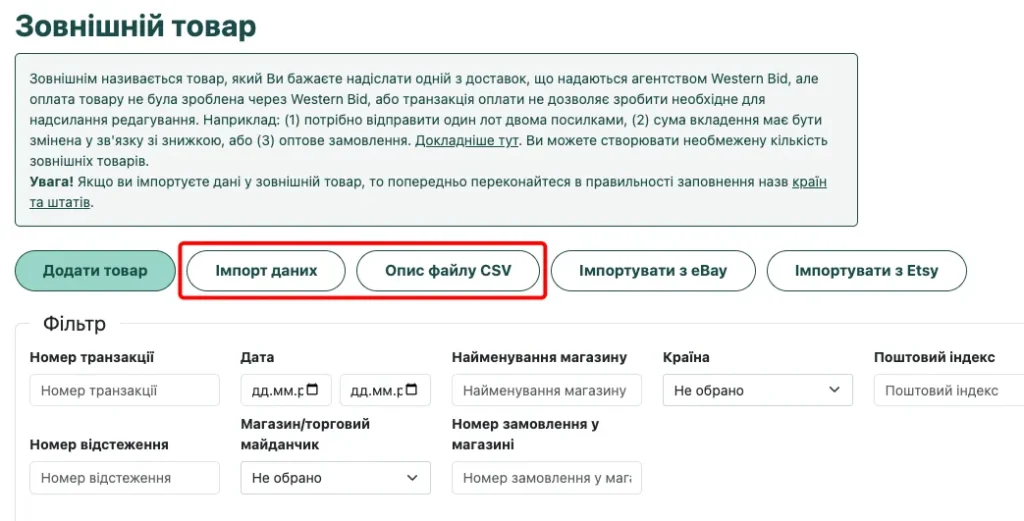
1. In your account, go to the “External product” menu item.
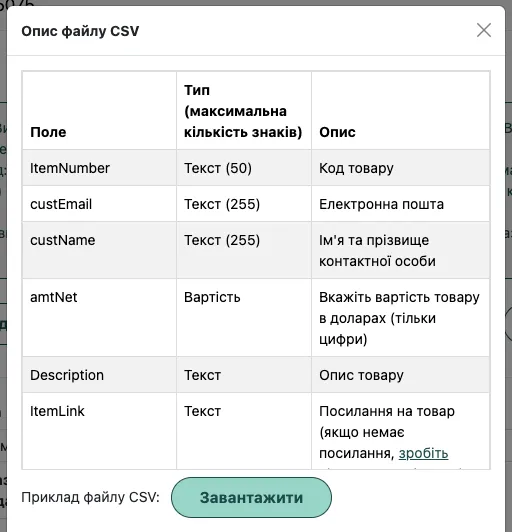
Here you will need two buttons – “Import Data” and “CSV File Description”.
If you click on the “CSV File Description” you will be able to view which fields are required for a successful product import, restrictions, and also download a sample file.
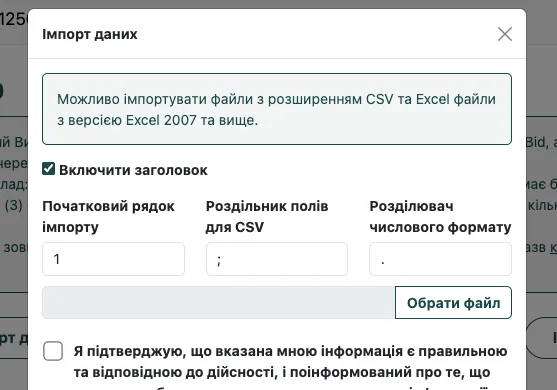
2. After clicking the “Import data” button, a window will open in which you need to click “Choose file”, select the previously prepared file, and agree to the terms of cooperation.
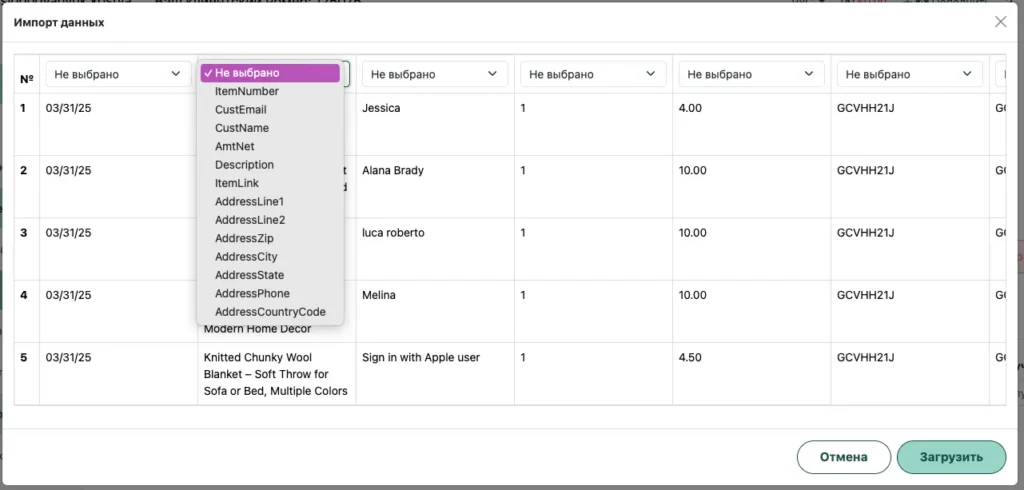
3. If you have selected the file, indicated that you agree to the terms and clicked “Download” – a window will open in which the information from your file will be displayed.
All information should be displayed in the form of a table with the ability to assign a name to each column (example below).
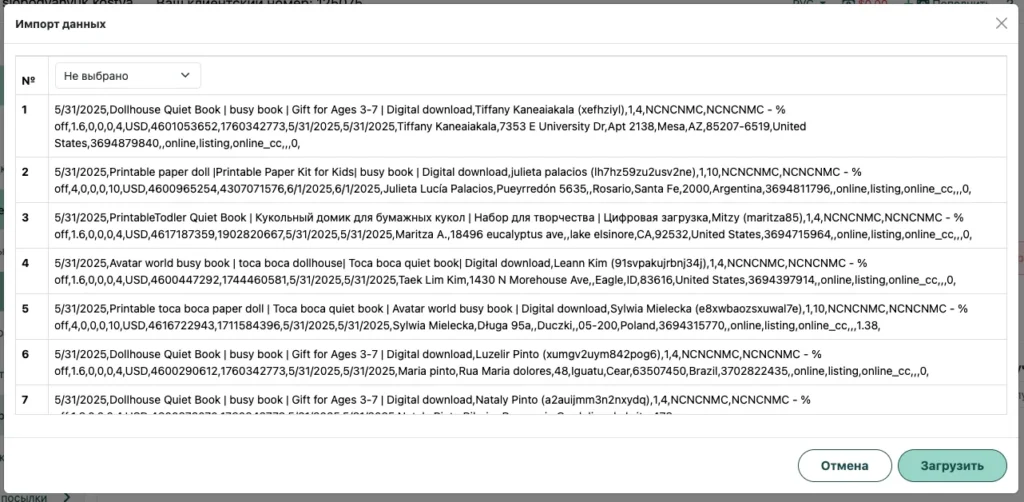
If after uploading the file, the table looks like the photo below, all information for each product is shown together in one cell. You need to re-upload the file, changing “CSV field delimiter” from semicolon “;” to just a comma “,”
Methods of importing orders from Etsy into Western Bid
| Method | How it works | When to choose |
|---|
| Etsy shop authorization | Connect the shop once in the «Etsy Authorization» menu, after which orders can be downloaded for the selected period, and auto-import can also be enabled. | If you have Etsy Payments and need regular automatic import of orders. |
| CSV from Etsy | Upload the CSV in Shop Manager → Settings → Options → Download Data → Orders, and then import this file into «My Shipments → External Product → Import from Etsy» | If you don’t have Etsy Payments or you want to import selectively. |
| Custom CSV Import | Create your own CSV according to Western Bid requirements (via «CSV File Description») and upload via «Data Import» in «External Product». | If your orders are not only from Etsy or you want a unified CSV for different marketplaces. |
| Via KeyCRM | Synchronize Etsy with KeyCRM, then in KeyCRM create shipments via Western Bid. | If you already work with KeyCRM and want to manage orders in the CRM. |