Connecting Etsy to Western Bid takes only a few minutes and opens up full automation of orders and shipments for you. From displaying addresses and expected delivery dates directly in your Western Bid dashboard, to quick checkout and automatic transfer of tracking numbers and closing orders in the Etsy system.
What you’ll get after connecting Etsy to Western Bid
- All orders from Etsy will automatically appear in your Western Bid dashboard.
- No longer need to manually copy customers’ addresses and order details.
- Creating international shipments takes just a few clicks.
- Tracking numbers are automatically sent to Etsy, and orders are closed without your involvement.
- Customers can see the shipment tracking from the moment it arrives at the Western Bid warehouse.
- Access to automation and special rates from Etsy’s official logistics partner in Ukraine.
Below is a step-by-step guide on how to set everything up and how to integrate your Etsy store with Western Bid.
P.S. Please note that in November 2025 Etsy launched a Priority Logistics Partners program in Ukraine and announced changes whereby other services that are not Etsy-recommended partners will not receive APIs for automating address retrieval and transmission of tracking numbers. These changes will start to be implemented from February 3, 2026.
Western Bid has become Etsy’s Priority Shipping Partner for delivery. Therefore integration with Western Bid will provide you with guaranteed automation capabilities and access to the largest selection of shipping options from Ukraine at discounted rates.
1. Registration in the Western Bid system
Before connecting the store, you need to create your Western Bid account.
This is fast and free and gives you access to a whole suite of tools: from a delivery calculator and shipping automation for Etsy sellers, to fulfillment, educational webinars, offline events, and payment integrations for websites.
Step 1 — creating an account
1. Go to the registration page (for those who register using this exact link, there will be a $5 bonus toward sending your second package)
2. Enter your first and last name in English letters, enter your current email address and a password and remember it. You also need to come up with your own login (it’s like your nickname, an additional identifier by which we can find your account in the system).
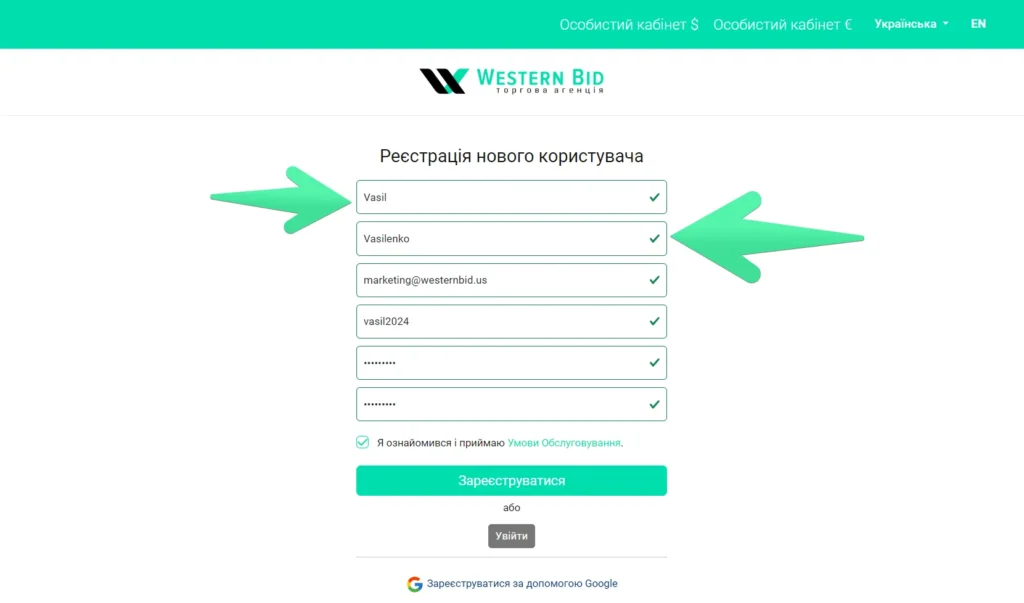
3. Check the box (having first read the Terms of Service) and click “Register”.
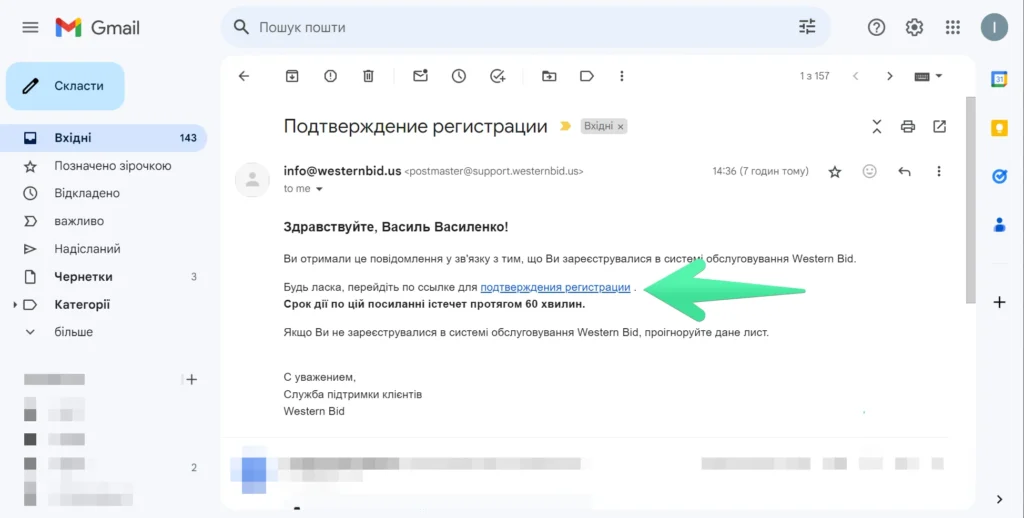
4. Receive a confirmation email in your inbox and follow the link to verify your email address.
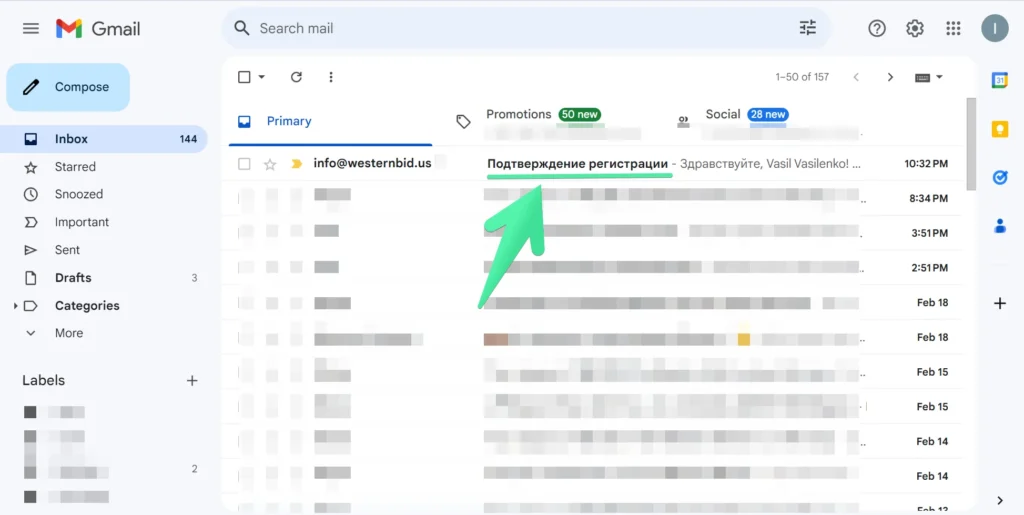
Click the link in the email.
Step 2 — filling in profile data
After email verification, the system will redirect to the next step:
1. Please provide your first name and last name, date of birth, and phone number.
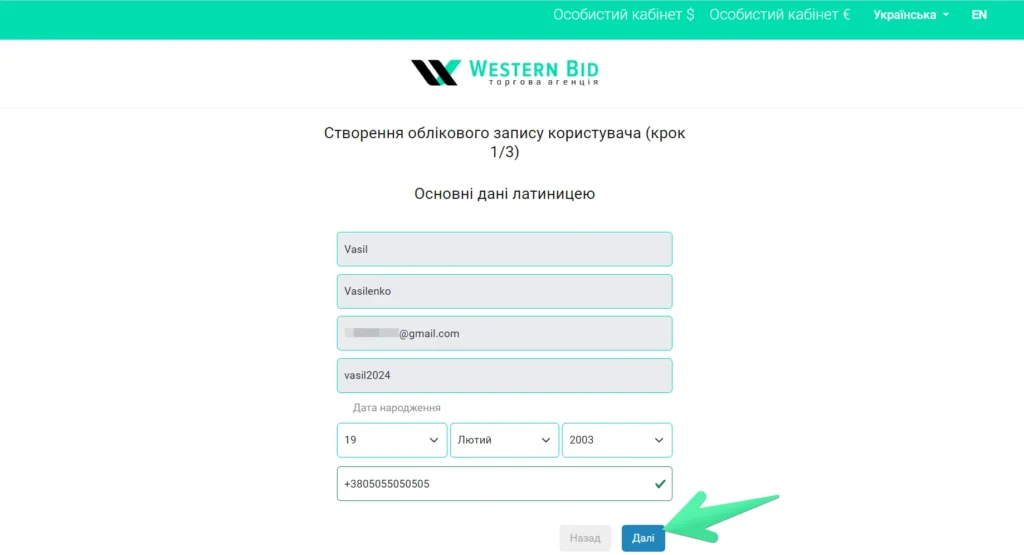
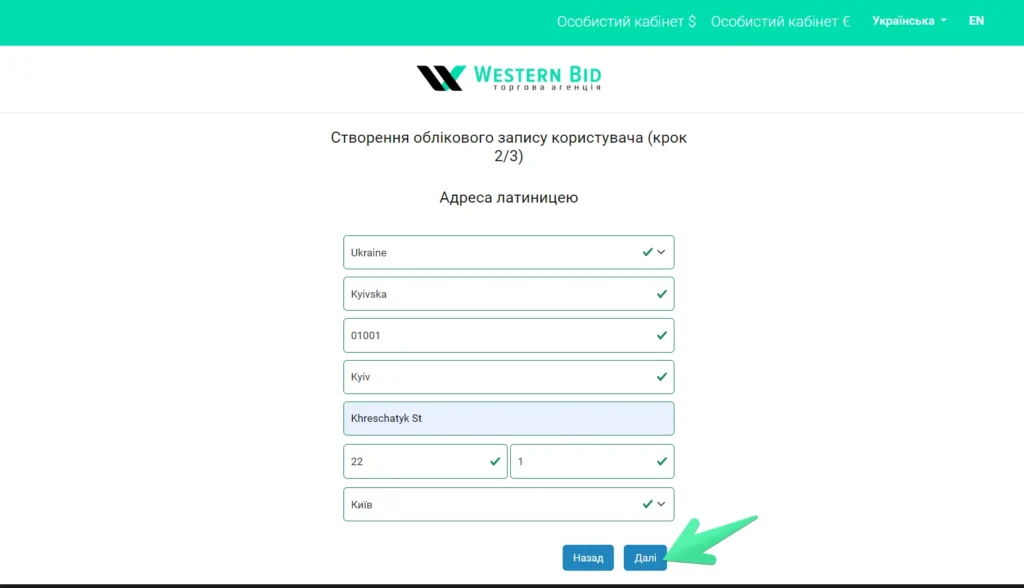
2. Fill in the address in English letters — it will automatically pull into the “sender address” area in your profile settings. It can be edited, or more sender addresses can be added.
If you sell goods, please provide your login and/or a link to the store (optional).
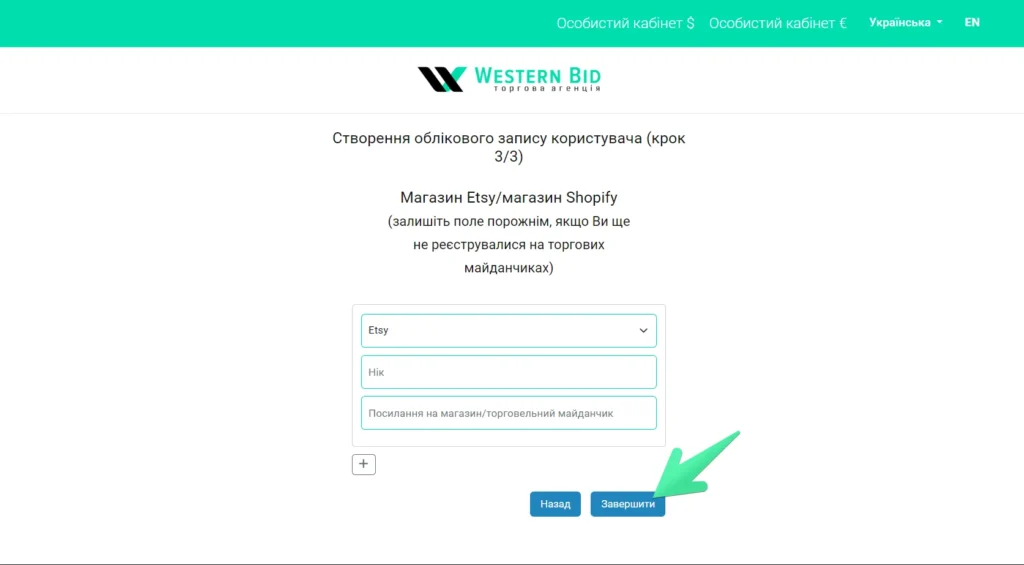
After this, your Western Bid account will be fully created.
2. Connecting the Etsy store to the Western Bid system
When the account is already active, the Etsy integration takes just 1–2 minutes.
Step 1 — go to the Integrations section in the dashboard
1. To do this, log in to your Western Bid account.
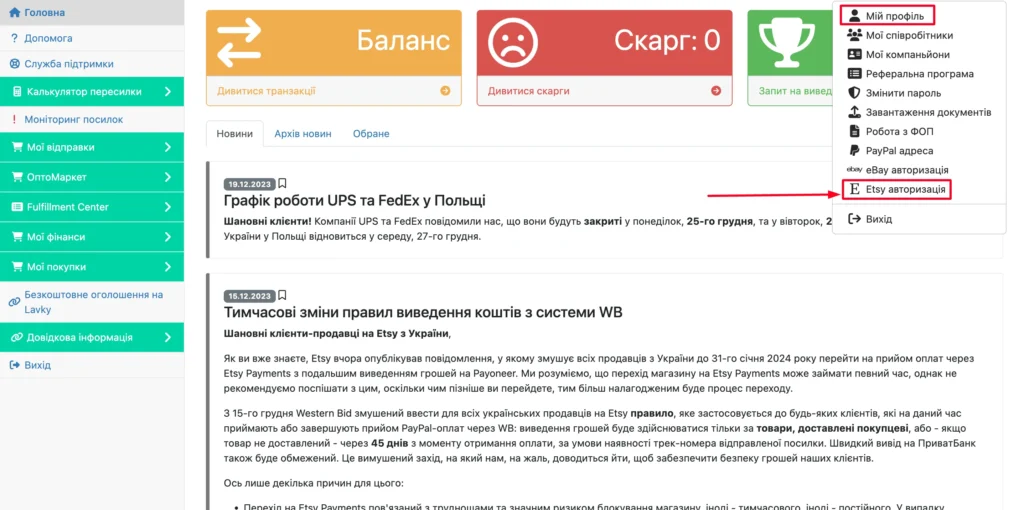
2. On the right in the menu, find the “Etsy Authorization” section.
Step 2 — add your Etsy shop
Click the “Add new Etsy store” button – then the “Authorization” button.
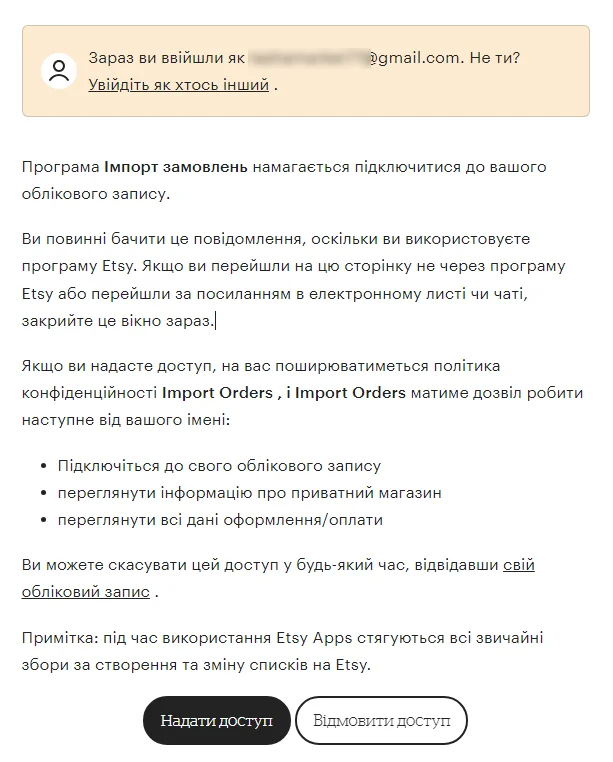
After that the Etsy store login page will open. You need to enter the login and password for your store (which you want to link to the Western Bid system for order synchronization). After that there will be a window with the terms of cooperation, where you need to grant authorization.
Next, if everything was completed successfully, you will return to your Western Bid account and you will see a notification that the authorization was successful.
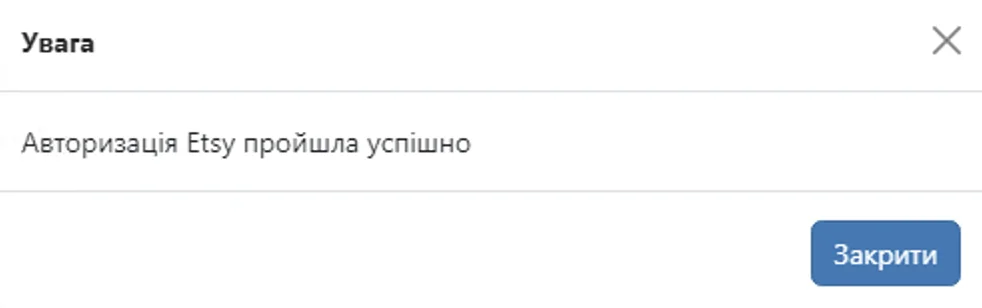
Welcome! Your store is integrated with Western Bid.
3. What capabilities become available after integration
After connecting, you will get full automation of your workflow with Etsy and Western Bid.
1. Automatic import of orders
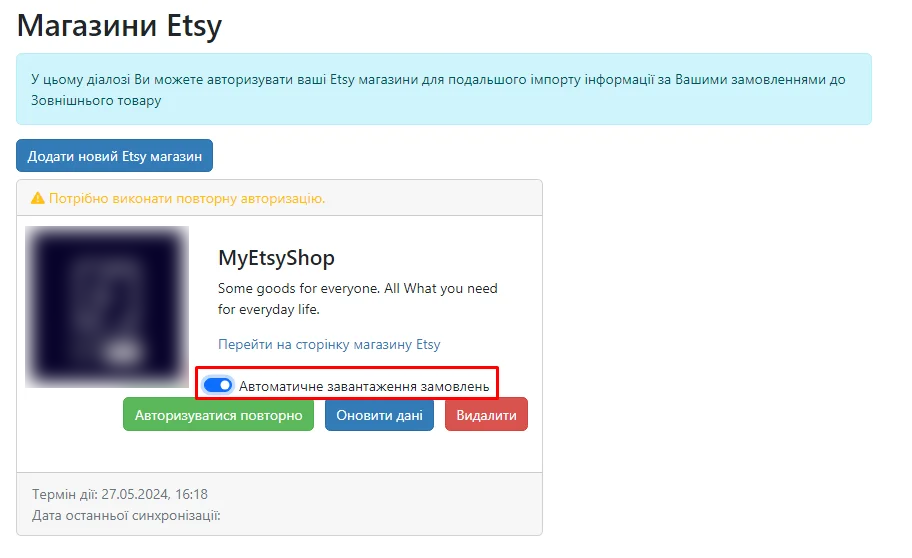
Now you can enable automatic import of orders – then all new orders from Etsy will automatically appear in your Western Bid account.
In the orders, you will immediately see:
- customer’s name,
- delivery address,
- e-mail,
- product details,
- listing price (Etsy transmits it automatically)
- the expected shipping date.
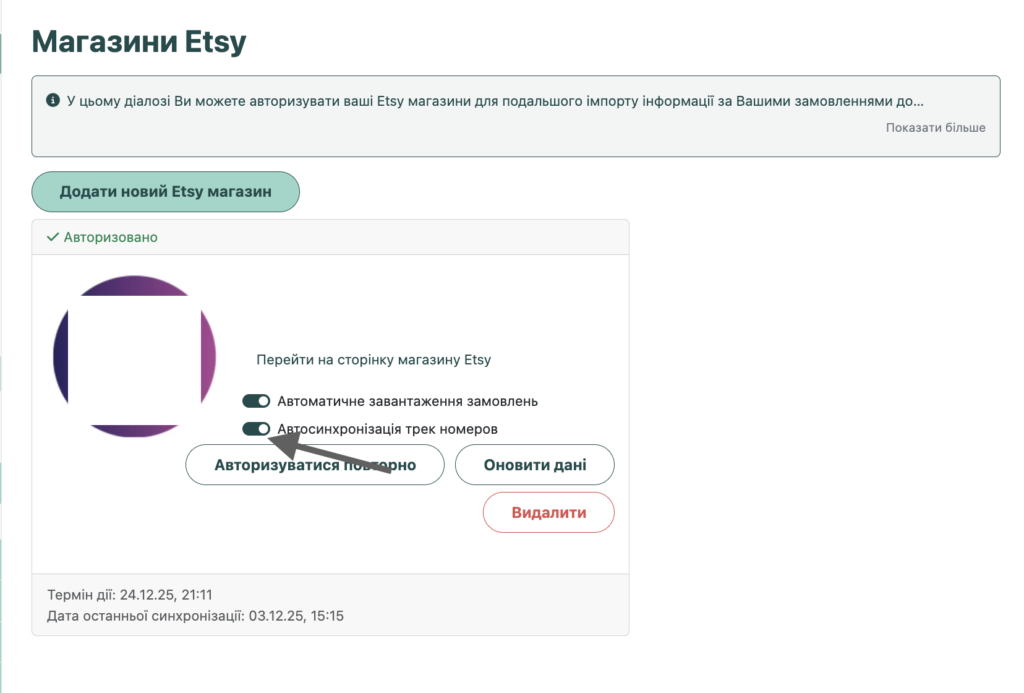
To automatically import orders into the Western Bid system, after connecting the store, select in the menu item “Etsy authorization” the desired store and check the “Automatic order import” option.
2. Synchronization of orders for the selected period
You can pull into the order system orders that were placed before authorization. Or, in general, do not enable the automatic synchronization option, but download orders for the selected period or in a certain status (for example those that have not yet been shipped).
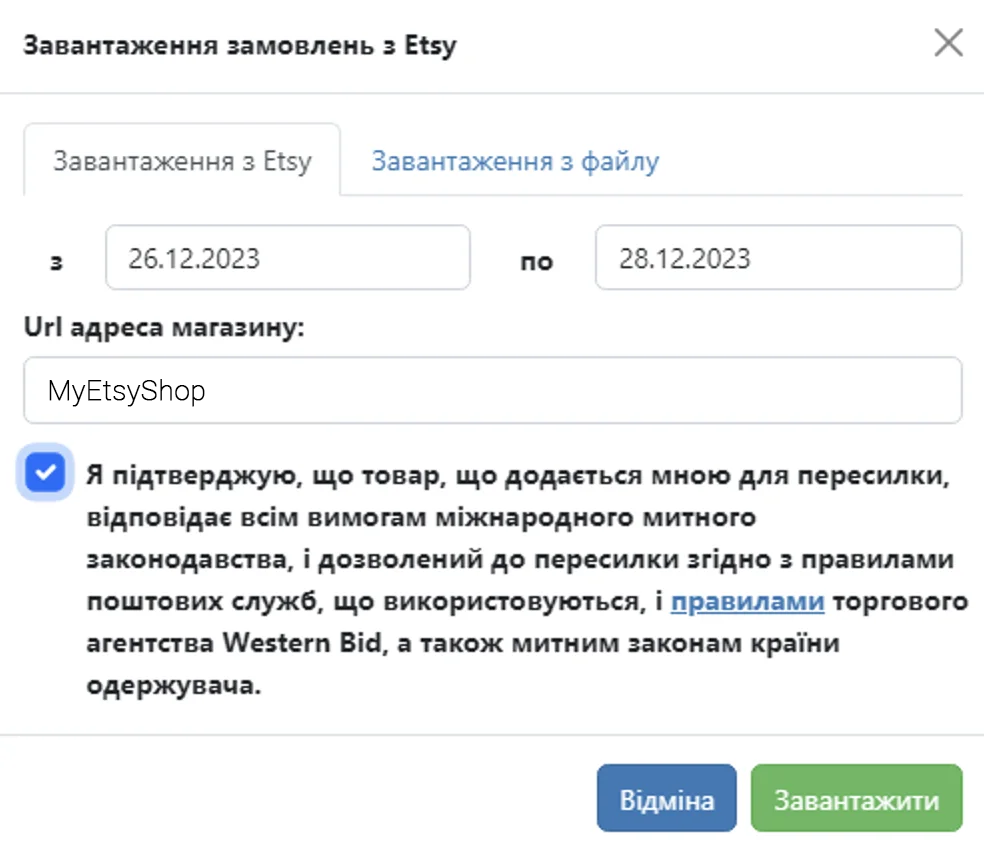
For this, in your Western Bid account go to the “My Shipments” – “External Product” section and click the “Import from Etsy” button. There in the “Downloads from Etsy” tab you will be able to select a previously added Etsy shop (if there are several), and if only one shop is added, it will be displayed automatically. Choose the period for which you need to add orders and click the “Download” button.
In the next window you will see a list of available orders, and you will be able to mark which ones you want to add to the Western Bid system.
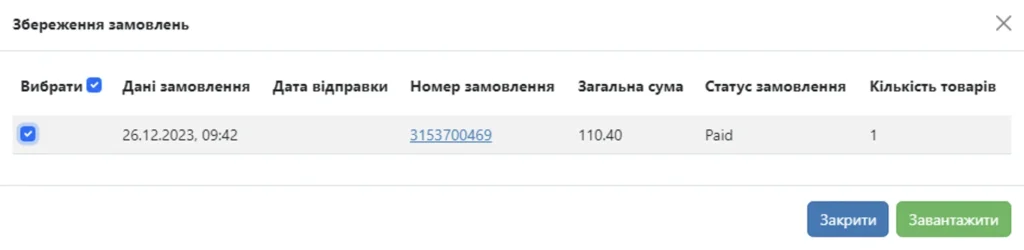
After you have selected the required orders, click the “Download” button, and they will appear in your “External product” menu. For the next import of orders, you won’t need to go through store authorization; you only need to enter the store name and select the period for which you want to add orders.
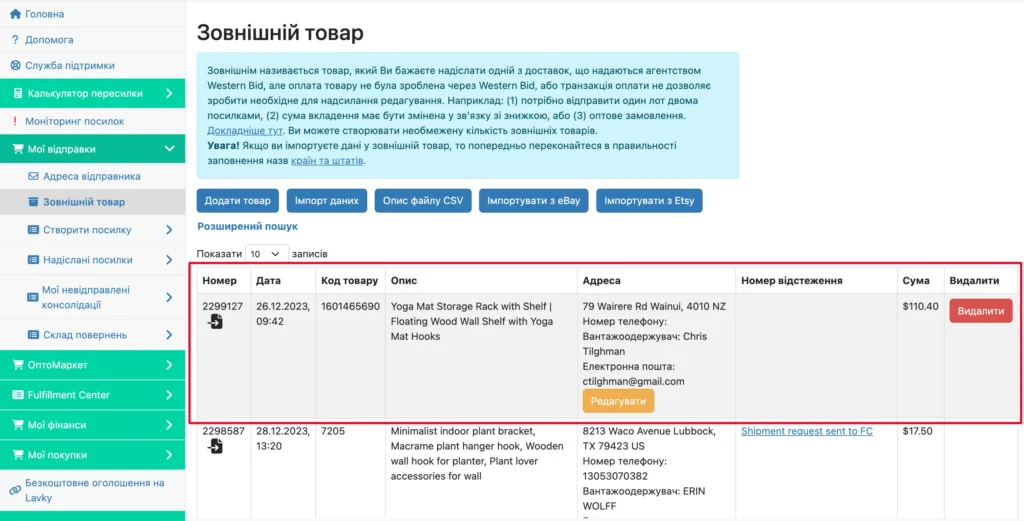
3. Creating links in a few clicks
After you have already imported all the necessary orders into the account, you no longer need to transfer data manually: all fields for creating the shipment are already filled by the system. The only thing to check is the phone number. Even if the buyer on Etsy provided it, the system does not transmit it automatically. So, check this item and add the number if it is specified in your order.
Recipient address verification before shipment
Before creating the shipment, be sure to verify the recipient’s address via Google Maps. This will allow you to ensure that the address exists, is correct, and complete (including street, house number, city, and postal code).
For verification:
- enter the full address in Google Maps;
- make sure the system finds a specific place without errors or ambiguities;
- check for a correct postal code and precise location.
It is also important to ensure that the address is located on the mainland part of the recipient’s country. Shipments cannot be made to islands or other territories that do not belong to the mainland part of the delivery country.
In case of doubts about the address or its location, it is recommended to additionally confirm the data with the recipient before processing the shipment.
For creating the shipment you can immediately enter the dimensions and weight of the shipment into the calculator. There you will see all delivery options available to you.
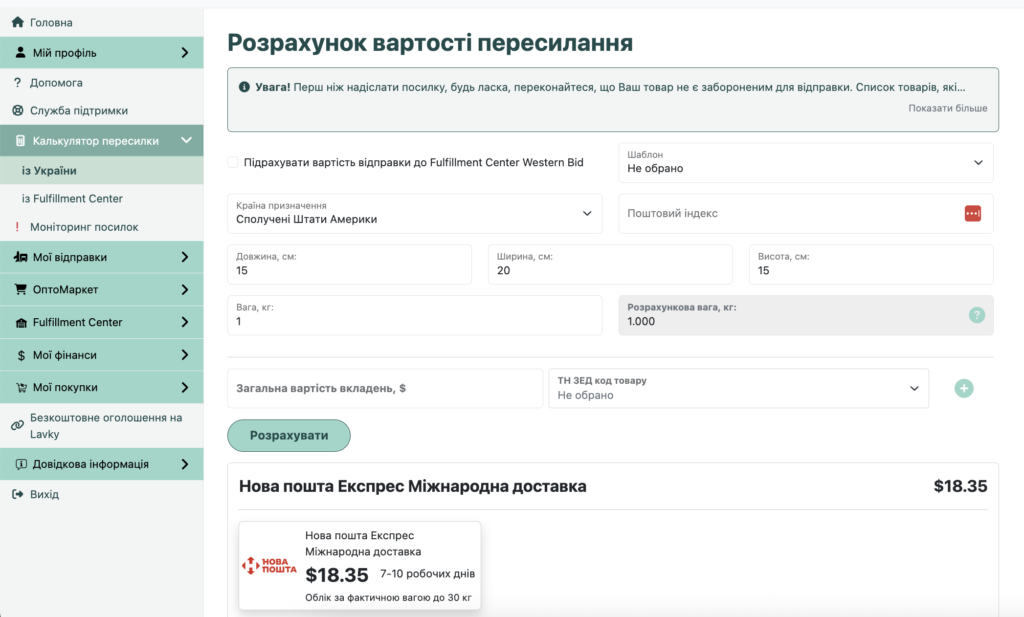
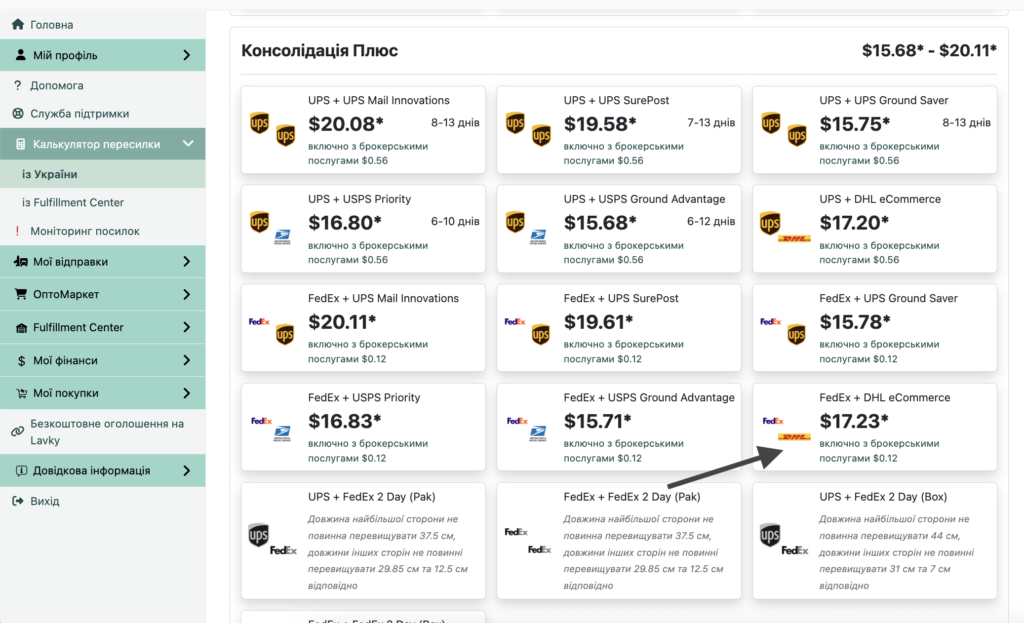
Right in the calculator you can click on the selected delivery method
And the system will immediately redirect you to the list of orders available for shipment.
Select the order that needs to be shipped and click the “Continue” button.
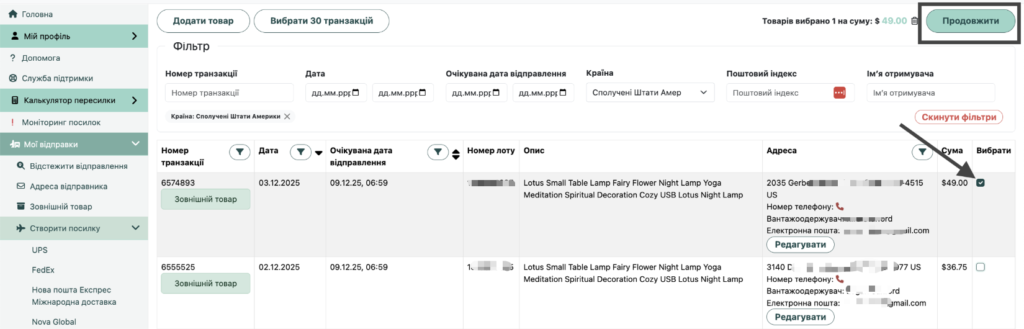
The system will ask you to verify and fill in all the necessary fields for shipment, and at the end of the process you will be offered to pay for the shipment, and your shipping label will be generated automatically.
4. Automatic sending of tracking numbers back to Etsy
In the “Etsy authorization” area you can also enable or disable automatic transmission of tracking numbers.
And you can also transmit to Etsy the Western Bid internal tracking number, which starts with WBX, and select the Western Bid delivery service. In this case the parcel will be tracked in Etsy from the very beginning — from the moment it arrives at the Western Bid warehouse in Kyiv, and then through all stages of delivery.
This is especially important for shipments through consolidations, UPS and FedEx via Poland: the package will no longer get stuck in the Pre-transit status. The buyer will see the shipment’s current progress from the very beginning.
In the dropdown menu you can independently choose which tracking number to transmit to the Etsy order.
1. Western Bid Tracking Number
In Etsy the WBX number is transmitted, the shipping service is indicated as Western Bid, and the tracking starts from the receipt in Kyiv and leads to Western Bid tracking.
2. Carrier tracking number to the customer
In Etsy the original carrier tracking number is transmitted: FedEx, UPS, Nova Global, Nova Poshta International and others. For consolidations — the “last mile” number. Tracking starts from the moment the parcel is received by the carrier.
More details about these options can be read here.
When to send the tracking number to Etsy
You can also choose when to automatically send the tracking number to Etsy.
- Transmit immediately after creating the shipment
The tracking number will be automatically transmitted to Etsy immediately after the shipment is created in the Western Bid system. - Transmit on the expected ship date
In Etsy, for each order an expected ship date is specified (Expected Ship Date). If you choose this mode, the system will wait for the specified date to arrive and only after that will automatically transmit the tracking number to Etsy. In this case, the tracking number will not appear in Etsy immediately after creating the shipment, but will be transmitted exactly on the day of the order’s expected ship date.
After enabling this option:
- the tracking number will be automatically transmitted to Etsy in accordance with the chosen transmission settings;
- the order will be automatically marked as Completed after the transmission of the tracking number.
This saves time and reduces errors in manual filling.
Note that automatic transmission of tracking numbers to Etsy works only for the original transaction that was automatically added to the “External Product”. If you copied the original transaction in the “External Product”, the tracking number from the copy will not be automatically transmitted to Etsy.
4. What to remember
- Integration is available only after completing registration with Western Bid.
- You can connect multiple stores to a Western Bid account. These can be stores owned by different owners — this does not carry the risk of “linking” between stores. If the stores belong to different owners, we also recommend creating sender addresses with the names of these owners and using them accordingly.
- Connecting a store is performed once and then works automatically. However, sometimes Etsy updates its access tokens. At such times the store may temporarily lose the integration.
What to do if you notice that orders are not being automatically transferred?
If you notice that new orders from Etsy do not appear in your Western Bid account, simply re-confirm the access:
1. Go to the “Etsy Authorization” menu in Western Bid.
2. Click Reconnect.
3. After that, all orders will start importing automatically again.
Working with Etsy: without integration and with Western Bid integration
| Process | Without integration | With Western Bid integration |
|---|---|---|
| Receiving orders | Manual copying of data from Etsy into the shipping system or a spreadsheet. | Automatic import of orders into the Western Bid account with all customer data. |
| Creating shipments | Manual entry of addresses, weights, and product descriptions for each shipment. | Data is pulled from the imported order; you only need to verify and add weight and dimensions. |
| Sending tracking numbers to Etsy | Manual entry of tracking numbers and changing order status to ‘Completed’. | Automatic transfer of tracking numbers and status change after creating the shipment. |
| Working with multiple stores | Each store must be processed separately, with a risk of confusion. | Multiple stores are managed from a single Western Bid account via a single interface. |
| Risk of errors | High risk of errors due to manual data entry. | Reduced due to automatic import and synchronization. |
